How do I set up a home network in Australia, from the nbn connection to Wi-Fi and wired points in every room?
A good Australian home network runs from the nbn box to a central comms hub. There, a gateway, PoE switch, patch panel and UPS connect to Cat6 cable run in a star to every room, with ceiling-mounted Wi-Fi access points on each level. FTTP, FTTC, HFC and Fixed Wireless need no modem; FTTN/FTTB need a VDSL2 modem. A registered cabler must do the cabling.
What nbn box will I have, and where does my own router plug in?
Every home network in Australia starts at the point where the nbn® network enters the house. nbn uses a Multi Technology Mix: Fibre to the Premises (FTTP), Fibre to the Building (FTTB), Hybrid Fibre Coaxial (HFC), Fibre to the Curb (FTTC) and Fibre to the Node (FTTN) are the Fixed Line types, while Fixed Wireless and Sky Muster® satellite serve mostly regional and remote areas. Your technology decides what box is on the wall and whether you need a modem.
| nbn technology | nbn equipment at your home | How your router/gateway connects | Separate modem needed? |
|---|---|---|---|
| FTTP | nbn utility box outside, plus an nbn connection box inside (also called the Network Termination Device, NTD) | Ethernet cable from the connection box to your router | No |
| FTTC | nbn connection box (also called the Network Connection Device, NCD), powered from a power point and plugged into your telephone wall socket | Ethernet from the yellow port labelled “C” on the NCD to your gateway’s WAN/Internet/NBN port | No |
| HFC | nbn connection box (also called the NTD), connected to the wall outlet | Ethernet from your router to the connection box port (labelled “Port” on the latest box; nbn also describes it as the yellow connector) | No |
| FTTN and FTTB | No nbn box inside the home; the existing telephone wall socket is used | A VDSL2-compatible modem plugs into the wall socket | Yes, VDSL2-compatible |
| Fixed Wireless | nbn outdoor antenna plus an nbn connection box inside | Your router plugs into the connection box | No |
| Sky Muster satellite | Roof satellite dish, plus an nbn-supplied modem (nbn’s term), power pack and wall outlet inside | Your router connects by Ethernet to the nbn satellite modem; it can be your own or supplied by your provider | No (nbn supplies the satellite modem) |
For FTTP, nbn’s own diagram shows exactly the layout most home networks are built on: the connection box connects to the router by an Ethernet cable, both need a power outlet, and the router can be “supplied by your provider, or you can source one yourself”. nbn’s newer FTTP connection boxes (from September 2025) and HFC connection boxes (from February 2025) are built for multi-gigabit plans; the new HFC box has a 2.5GE port. If you want nbn’s multi-gigabit plans, ask your provider whether your box needs upgrading.
Do UniFi gateways have a built-in modem? No. The UniFi Cloud Gateways we checked on Ubiquiti’s official spec pages (UCG-Ultra, UCG-Max and UDR7) have Ethernet (RJ45) WAN ports, and the UDR7 also has a 10G SFP+ WAN, but none has a VDSL2 telephone-line port. On FTTP, FTTC, HFC and Fixed Wireless that is fine: the gateway plugs straight into the nbn box. On FTTN or FTTB, you need a VDSL2-compatible modem from your provider (or your own) in front of the gateway. Ask your provider how to set their modem up for use with your own router.
Starlink is not part of the nbn, but you can connect a UniFi gateway to it too. See our Starlink router guide for Australia.
Where should the nbn box and comms hub go?
The best home networks have one comms hub: a single spot (often a cupboard, garage wall or under-stair space) where the internet connection, gateway, switch, patch panel and UPS live, and where every data cable runs back to. Plan it around where the nbn box is, or where it can sensibly go.
- FTTP placement rules. nbn’s technician uses guidelines when choosing where the connection box goes: within 1.2 metres of an existing power point (or a safe extension lead you provide), within a 12 metre radius of the outside utility box where possible, in a cool, dry, ventilated spot, not in wet areas, on the ground floor of a multi-storey building, on the inside of the external wall where the utility box was installed, and not in a garage or bedroom unless you ask for it or there is existing Ethernet cabling from there to a better router location. These are guidelines, so the technician can make exceptions where a site requires it.
- HFC and FTTC. nbn says the box should be no more than 80 cm from a power point that equipment can stay plugged into.
- Two ways to reach your hub. If the nbn box cannot go where you want it, nbn lists options at your own cost: provide your own fibre pathway that meets its Customer Installed Fibre Cable Pathway requirements, or run an Ethernet cable from the nbn connection box to where you want your router. nbn also says registered cablers can relocate nbn equipment inside your home, following nbn standards and its Authority to Alter guide.
A good hub has a dedicated power point (or two), some airflow, and room for a small wall-mounted rack. If you need a new power point for it, that is fixed 230 V wiring: use a licensed electrician (see below).
Home network setup order (new build or renovation)
- Confirm your nbn technology (FTTP, FTTC, HFC, FTTN/FTTB, Fixed Wireless or Sky Muster) and where the nbn box is or will go.
- Choose the comms hub location, close to the nbn box or reachable from it by Ethernet. Have a licensed electrician add power points there if needed.
- Mark every data point on the plans: TVs, desks, bedrooms, one ceiling point per access point, cameras and the doorbell.
- Have a registered cabler run Cat6 or Cat6A in a star back to the hub, terminate on wall plates and a patch panel, and give you the compliance statement.
- Mount the wall cabinet. Fit the patch panel, the switch (with its rack-mount kit), the UPS, and a shelf for the gateway and NAS.
- Connect the gateway's WAN port to the nbn connection box (on FTTN/FTTB, to a VDSL2 modem) and power both the gateway and the nbn box from the UPS.
- Set up the gateway in the UniFi app, sign in with your UI Account (optional but recommended; MFA is mandatory on UI Accounts), and turn on automatic updates and automated backups.
- Create your networks (Main, IoT, Cameras, Guests), enable isolation where needed, and assign Wi-Fi names to them.
- Adopt the switch, then patch and adopt the ceiling access points. Use 2.5 GbE ports for Wi-Fi 7 APs.
- Walk the house with the WiFiman app and check signal. Add or move APs where signal is weaker than about −70 dBm.
- Add cameras and the doorbell on the Cameras network, and check the total PoE draw against the switch budget.
- Set up the NAS with RAID 1, plus an offsite or cloud backup to follow 3-2-1. Then do a test blackout to check what stays up on the UPS.
All-in-one router or gateway plus access points?
There are two ways to build a home network:
- All-in-one. One box is the router, firewall and Wi-Fi. Ubiquiti’s UniFi Dream Router 7 (UDR7) is an example: Wi-Fi 7, four 2.5 GbE ports (one with PoE), a 10G SFP+ port and microSD storage for UniFi Protect recording, per its official spec sheet. It suits smaller homes, or homes where the router can sit centrally.
- Gateway plus access points (APs). A wired gateway lives in the comms hub, and Wi-Fi comes from ceiling-mounted APs cabled back to a PoE switch. This is the setup that scales to double-storey homes, because you put Wi-Fi where people actually are rather than where the nbn box happens to be.
Either way, UniFi uses one app for the gateway, switches, APs and cameras. Compare the gateways in our UniFi Cloud Gateway comparison (UCG-Fiber vs Ultra vs Max vs UXG) and the rack-mount Dream Machines in UDM Pro vs UDM SE vs UDM Pro Max. Weighing up brands? See MikroTik vs Ubiquiti UniFi in Australia and our complete UniFi buying guide.
How should a home be cabled? Cat6, star wiring, wall plates and patch panels
Wi-Fi is only as good as the cable behind it. For a new build or renovation, structured cabling done once is the single best investment in a home network.
- Cable type. Ubiquiti recommends Cat6 RJ45 cabling for wired connections (or SFP/DAC where possible). Standard copper Ethernet runs are limited to about 100 m: TP-Link’s Omada switch specifications list Cat5/5e-or-better UTP for 1000BASE-T at a maximum of 100 m. If you want 10 Gbps over copper, TP-Link states that “with Cat6a or higher rated cables, 10G connections are built up to 100 meters”. Cat6A costs more and is thicker, but gives the most future headroom.
- Star topology. Run every cable from its outlet straight back to the comms hub. No daisy-chaining between rooms. That way any outlet can be patched to the switch, the gateway or the nbn box later.
- Wall plates and ceiling points. Typical outlets: one or two data points behind each TV, at each desk or study nook, in each bedroom, and a ceiling point for each Wi-Fi access point. Add points for cameras, a doorbell and any outdoor AP while the walls are open.
- Patch panel and rack. At the hub, cables terminate on a patch panel in a small wall-mounted rack. Short patch leads then connect panel ports to the switch, so it’s easy to move things around and keep it neat.
- Label everything. Number each wall plate and the matching patch panel port.
Who is allowed to do the cabling in Australia?
In Australia, cabling connected to the telecommunications network must be done by a registered cabler (under ACMA’s cabling rules). The cabling industry is regulated by the Telecommunications (Cabling Provider) Rules 2025. According to ACMA, these rules say:
- A registered cabler must do telecommunications, fire, security and data communications cabling. An unregistered person can only work under the direct supervision of a registered cabler.
- Work must comply with AS/CA S009:2020 Installation requirements for customer cabling (the Wiring Rules), which require, among other things, separation of telecommunications cabling from electrical cabling.
- After the job, the cabler must give the customer who commissioned the work (you, or your builder) a written statement certifying it complies with the Wiring Rules. If a builder arranged the cabling, ask them for a copy.
ACMA lists “data cabling for computers that connect to the telecommunications network” and “connecting from an NBN modem to data or voice cabling, but only after your telecommunications carrier has connected the NBN modem” as services a registered cabler provides, and recommends you always use a registered cabler for phone, internet or alarm cabling in your home. ACMA has a Find a registered cabler tool on its website.
Mains power is separate. Fixed (hard-wired) 230 V work, such as a new power point in the comms cupboard or for a ceiling heater near an AP, must be done by a licensed electrician under your state’s electrical safety law. In Victoria, for example, Energy Safe Victoria says you must engage a registered electrical contractor for electrical installation work. Plug-in power supplies, PoE injectors and plug-in UPSs don’t need an electrician.
What rack or data cabinet does a home need?
Most homes are well served by a small wall-mounted cabinet rather than a floor-standing server rack. What to check:
- Usable depth, not just outside depth. Ubiquiti’s UACC-Rack-12U-Wall-450-G is 450 mm deep overall, but its adjustable mounting depth is 283 mm by default and 305 mm maximum. Ubiquiti says it takes Ubiquiti rack-mount devices up to 325 mm deep (325 mm devices fit when the mounting depth is set to the 305 mm maximum). Ubiquiti notes that DC power backup is not supported at that depth.
- Weight and wall fixing. That cabinet weighs 19 kg empty and has a 50 kg maximum load, so it needs a solid fixing into studs or masonry.
- Airflow and power. It comes with two pre-installed 120 mm AC fan units, so plan a power outlet inside or next to the cabinet for the fans, UPS and equipment.
- Cable entry. It has cable entry openings in the rear wall, top and bottom, which makes it easier to bring a bundle of Cat6 in neatly.
- Space plan (12U example): patch panel, cable management, PoE switch, shelf for the desktop gateway and NAS, and a 2U shallow rack UPS at the bottom. The UNAS 2 is a desktop tower about 224 mm tall, so the shelf takes roughly 6U, which leaves only about 1U spare. If you want room to grow, keep the NAS outside the cabinet or choose a taller one.
If you only have a handful of cables, a smaller enclosure or a tidy shelf in a ventilated cupboard is fine. The rack is about neatness, airflow and room to grow, not speed.
Which switch, and how much PoE do I need?
The switch connects every cable in the house, and with Power over Ethernet (PoE) it also powers access points, cameras and doorbells over the same cable. Ubiquiti’s PoE guide explains the standards: 802.3af (“PoE”) provides up to 15.4 W at the switch, 802.3at (“PoE+”) up to 30 W, and 802.3bt (“PoE++”) up to 60 W (Type 3) or 100 W (Type 4).
To size a switch:
- Count your ports: every wall plate, every AP, camera and doorbell, the uplink to the gateway, and spares.
- Check the PoE type each device needs on its own spec sheet. Requirements vary even within one family: the U7 Pro needs PoE+ (21 W max), while the U7 Lite runs on standard PoE (13 W max).
- Add up the maximum power draw and keep it under the switch’s total PoE budget, leaving headroom.
- Match port speeds: Wi-Fi 7 APs like the U7 Pro and U7 Lite have 2.5 GbE uplinks, so 2.5 GbE switch ports let them run faster than gigabit.
For example, the USW-Pro-Max-16-PoE has 12 × 1 GbE PoE+ ports, 4 × 2.5 GbE PoE++ ports (60 W each) and 2 × 10G SFP+ ports, with a 180 W total PoE budget. It can sit on a desk or mount on a wall; to put it in a rack you need the separate UACC-Pro-Max-16-RM rack-mount kit. A smaller option, the USW-Lite-16-PoE, has 16 × 1 GbE ports, 8 of them PoE+, and a 45 W PoE budget. That is enough for a few low-power devices, but its ports are gigabit only.
Our full walkthrough is What PoE switch do I need in Australia?; also see every UniFi switch explained and PoE for CCTV: 802.3af, at and bt.
Shopping for Ubiquiti?
Authorised Ubiquiti reseller: genuine Australian stock, full manufacturer's warranty, competitive prices and price match available.
How do I get great Wi-Fi in every room?
- Wire your access points. Ubiquiti says hardwiring APs gives the best performance and stability. Wireless meshing is an option where cable is not feasible, but each wireless “hop” cuts throughput by about 50%, and Ubiquiti recommends no more than two hops and a mesh signal of −60 dBm or better.
- Ceiling-mount where people are. UniFi ceiling APs such as the U7 Pro and U7 Lite come with ceiling/wall mounts (Pro Mount and Lite Mount). For wall mounting, Ubiquiti sells arm mounts for compatible APs (for example the AP Pro Arm Mount for the U7 Pro) “while providing similar coverage to a ceiling mount”; check compatibility before you buy, as not every AP has one. Place each AP near the middle of the area it needs to cover.
- How many APs? Ubiquiti’s rated coverage is about 140 m² for the U7 Pro and 115 m² for the U7 Lite. Real coverage depends on walls, floors and building materials. In our experience a double-storey home usually needs at least one AP per level, and larger or brick homes often need more. The practical test is signal strength: Ubiquiti says −70 dBm or better is needed for stable connections (−65 dBm or better recommended), and you add APs where signal is weaker than that.
- Wi-Fi 7. Both the U7 Pro (6 GHz, 5 GHz and 2.4 GHz, 6 spatial streams) and the U7 Lite (5 GHz and 2.4 GHz, 4 spatial streams) are Wi-Fi 7 ceiling APs with 2.5 GbE uplinks. Ubiquiti notes that some older IoT devices can have trouble with Wi-Fi 7 and suggests, if needed, a separate 2.4 GHz-only IoT network using WPA2.
- Keep expectations realistic. Ubiquiti points out that a 1 Gbps internet plan doesn’t mean 1 Gbps over Wi-Fi. Depending on the device, 150–600 Mbps is more realistic.
Choose your model with our UniFi access points compared guide.
How should I set up separate networks, passwords and updates?
A few simple habits make a home network tidy, quick and easy to look after:
- Separate networks (VLANs). Ubiquiti describes VLANs as splitting one physical network into separate logical networks without extra hardware, which helps with both performance and security. A common home layout is: Main (your phones and computers), IoT (smart plugs, TVs, appliances), Cameras and Guests. In UniFi you create the networks, assign each Wi-Fi name (SSID) to one, and set switch ports to the right network.
- Isolation. UniFi’s Network Isolation setting blocks traffic between a network and all other networks in one click. Client Device Isolation on a Wi-Fi network stops guests’ devices talking to each other, and Device Isolation (an ACL rule) can isolate individual devices. For guest Wi-Fi, we suggest using Network Isolation and Client Device Isolation together.
- Strong sign-in. A UI Account is optional (UniFi also works with a local login), but we strongly recommend one for remote management and cloud backups. Use a long, unique password for it. Ubiquiti has required multi-factor authentication (MFA) on UI Accounts since 22 July 2024, and recommends adding more than one MFA method so you can’t get locked out.
- Updates and backups. Ubiquiti recommends enabling automatic updates, which you configure per console and application in UniFi’s update settings. Turn on automated cloud backups: when enabled, UniFi makes a backup every week and before each major update.
How do cameras and a video doorbell fit in?
Wired PoE cameras and doorbells use the same structured cabling and PoE switch as your APs, so plan their cable runs at the same time (eaves, entry, driveway, backyard).
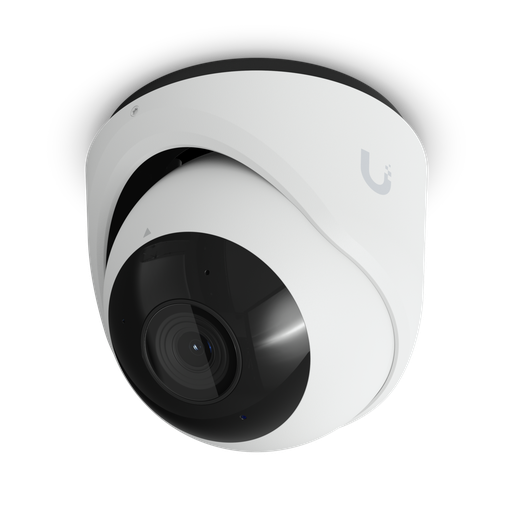
- Recording. Some UniFi gateways can record cameras themselves. Per Ubiquiti’s spec sheet, the UCG-Max runs UniFi Protect on an NVMe SSD (the standard model we stock includes a 512 GB SSD, and the slot takes up to 2 TB; a no-storage version also exists) and manages up to 15 HD, 8 2K or 5 4K cameras. For more cameras, use a dedicated NVR.
- Put cameras on their own network (see the VLAN section) and give them their own switch ports.
- Doorbells: check whether the model is powered by PoE or by an existing doorbell transformer, and whether a chime needs its own port. Any change to a mains-powered transformer or chime is licensed-electrician work. Our UniFi doorbell guide for Australia covers this.
More reading: home camera system buying guide (2, 4, 6 or 8 cameras), best UniFi Protect cameras, how much camera storage you need and cameras without a subscription.
Will my internet work in a blackout? UPS and nbn battery backup
nbn is clear: equipment connected via the nbn network will not work during a power outage unless it has backup power. The key facts from nbn:
- Every powered device needs its own backup. “Each mains-powered item of equipment connected to the nbn network will need its own battery back-up to work during a power outage.” That means the nbn connection box as well as your gateway, switch and the cabinet fans. PoE access points and cameras are powered by the switch, so they stay up as long as the switch does.
- FTTP battery backup. From June 2024 nbn no longer offers a Power Supply Unit with battery backup. Your phone and internet provider may be able to arrange one. Existing units can run the connection box for up to about five hours. Replacements use a standard 12V 7.0–7.2Ah 6-cell SLA battery (F2 terminals).
- Street power matters too. For FTTN, FTTB, FTTC, HFC and Fixed Wireless, nbn says restoring power with an alternative power option is not possible if that part of the nbn network is also without power. A UPS keeps your home network up, but internet access then depends on the nbn equipment in your street. For Sky Muster, alternative power will usually let you reconnect.
- Medical and monitored alarms. If you rely on one, check with the equipment provider whether it works over the nbn during an outage, as nbn recommends. Keep a charged mobile phone handy.
Sizing a UPS for the comms hub. Add up the maximum power draw of what you will plug in, from the official spec sheets. For example, the USW-Pro-Max-16-PoE is rated 210 W maximum including PoE output, the UCG-Max 16.1 W, and the UNAS 2 60 W. That is 286.1 W worst case before the nbn box and cabinet fans, still inside the 480 W rating of a PowerShield Defender RackMount 800VA. Real draw is usually lower. PowerShield’s runtime data shows about 8 minutes at 50% load (240 W), and less at higher loads, so a UPS like this rides through short outages rather than long ones. The PSDR800 is a line-interactive UPS with automatic voltage regulation and a simulated sine wave output, six Australian outlets plus two 10 A IEC outlets, and a 230 mm depth. PowerShield says it suits shallow, wall-mounted comms cabinets.
Read more: UPS for NBN, Wi-Fi and CCTV, best UPS for comms racks, how to size a UPS, PowerShield runtime chart and online vs line-interactive UPS.
Where should photos and backups live? Adding a NAS
A NAS (network attached storage) gives the household one place for photo libraries, computer backups and shared files, and it plugs into the same switch as everything else.
- RAID isn’t a backup. ASUSTOR puts it plainly: “RAID levels provide different levels of data protection, not data backup.” In practice, a two-drive mirror (RAID 1) keeps your files available if one drive fails, but it does nothing against accidental deletion, ransomware or a house fire.
- Follow 3-2-1. ASUSTOR recommends the 3-2-1 rule: three copies of your data (the original, a local backup and an offsite backup), on at least two types of media, with one copy offsite.
- Example: UniFi UNAS 2. It has two 3.5" bays, a 2.5 GbE port, a 5 Gbps USB-C expansion port and an included 60 W PoE++ adapter. It supports RAID 1, snapshots, Time Machine backup, and backup to a remote UNAS or to cloud services (including Google Drive, OneDrive, Dropbox, Amazon S3, Backblaze B2 and Wasabi). That covers the offsite copy.
- ASUSTOR NAS units suit homes that want more apps (media servers, Docker and more).
Start with what a NAS is, best home NAS in Australia, NAS backup done right: the 3-2-1 rule, 2 vs 4 vs 6 bays, NAS vs cloud storage, replacing Google Photos with a NAS, locking down a NAS and does a NAS need a UPS?.
Worked example: a double-storey Australian home
A typical four-bedroom double-storey home on nbn FTTP, with a home office, two living areas, a few cameras and a video doorbell. These are example models from our range with specs from the official sheets. Your quantities will depend on the layout.
| Category | Example | Why (official spec) |
|---|---|---|
| Gateway | UniFi Cloud Gateway Max (UCG-Max) | 5 × 2.5 GbE ports (one default WAN), 2.3 Gbps IDS/IPS, runs UniFi Network and Protect, 512 GB NVMe SSD included (up to 2 TB) for camera recording |
| PoE switch | USW-Pro-Max-16-PoE | 4 × 2.5 GbE PoE++ for Wi-Fi 7 APs, 12 × 1 GbE PoE+ for cameras, doorbell and wall plates, 2 × 10G SFP+, 180 W PoE; add the UACC-Pro-Max-16-RM kit to rack-mount it |
| Wi-Fi | 3 × U7 Pro (one per level plus one for the larger level or outdoor living area, adjusted after a signal check) | Wi-Fi 7, 2.5 GbE, PoE+, 21 W max each |
| Cabinet | UACC-Rack-12U-Wall-450-G | 12U wall cabinet, takes Ubiquiti rack gear up to 325 mm deep, 50 kg max load, 2 fans |
| Patch panel and cabling | Cat6 (or Cat6A) run in a star to the cabinet, by a registered cabler | Up to 100 m end to end, including patch leads; Cat6A for 10G headroom |
| UPS | PowerShield Defender RackMount 800VA (PSDR800) | 800VA / 480 W line-interactive, AVR, 6 Australian outlets + 2 × 10 A IEC, 230 mm deep |
| NAS | UniFi UNAS 2 (UNAS-2-B) | 2 bays, RAID 1, 2.5 GbE, cloud/remote backup targets |
Port and power check: the gateway’s WAN goes to the nbn connection box. One gateway LAN port uplinks to the switch, and one can connect the NAS. On the switch, one 2.5 GbE port is the uplink and the other three take the three U7 Pros. The APs total 3 × 21 W = 63 W of the 180 W PoE budget, leaving 117 W for cameras, the doorbell and its chime. Add those devices’ maximum draws from their own spec sheets before you buy.
Why buy your home network gear from ARC IP Networks?
ARC IP Networks is an authorised Ubiquiti reseller and an authorised reseller for MikroTik, TP-Link, D-Link, PowerShield and ASUSTOR. Everything is genuine Australian stock with the full manufacturer’s warranty, at competitive prices, and price match is available. Not sure about quantities or PoE budgets? Send us your floor plan and we’ll help you check your list.
Our picks
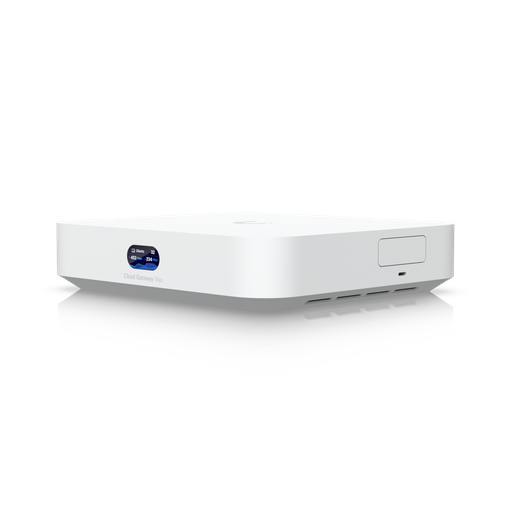
Ubiquiti UCG-Max-AU UniFi Controller Cloud Gateway Max
UCG-Max: 5 × 2.5 GbE ports, 2.3 Gbps IDS/IPS and a 512 GB NVMe SSD included so it can also record UniFi Protect cameras.
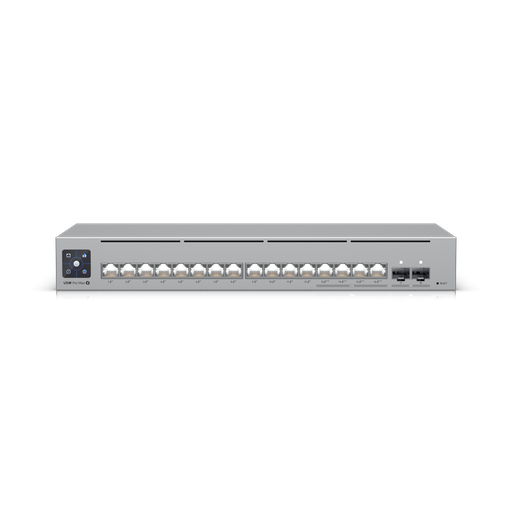
Ubiquiti USW-Pro-Max-16-PoE-AU UniFi 16 Port 180W, Layer 3 Etherlighting™ switch with 2.5 GbE and PoE++
USW-Pro-Max-16-PoE: 4 × 2.5 GbE PoE++ (60 W) plus 12 × 1 GbE PoE+ and 2 × 10G SFP+, with a 180 W PoE budget; rack, desk or wall mount.
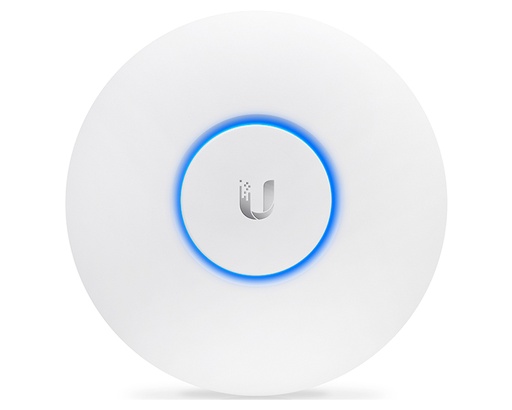
Ubiquiti U7-Pro UniFi AP WiFi7 Indoor WIFI 7 Access Point - No POE Injector
U7 Pro: tri-band Wi-Fi 7 including 6 GHz, 2.5 GbE uplink, PoE+ (21 W max), rated 140 m² coverage.
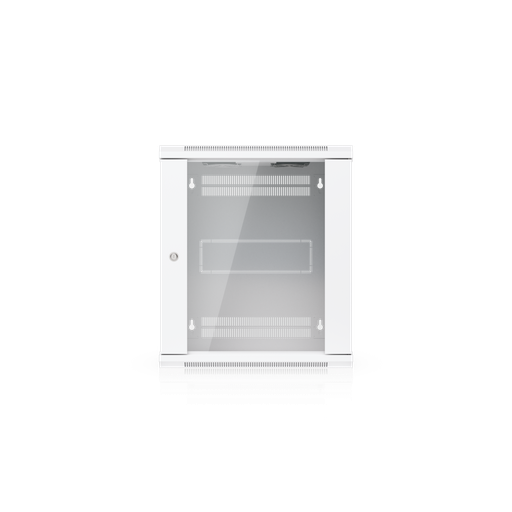
Ubiquiti UACC-Rack-12U-Wall-450-G 12U Rack Cabinet, 450 mm, Glass Door
UACC-Rack-12U-Wall-450-G: 12U wall cabinet with two fans and 50 kg capacity, taking Ubiquiti rack gear up to 325 mm deep.
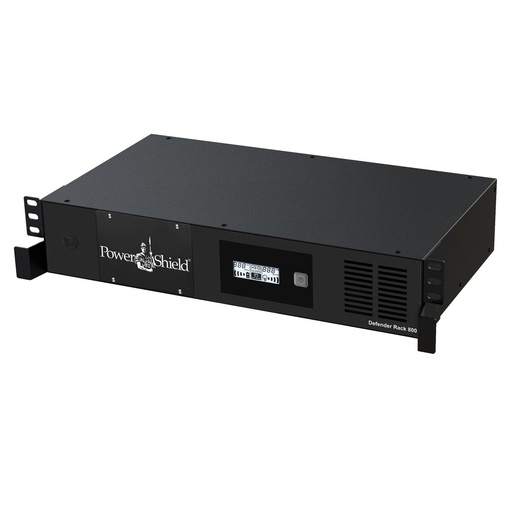
PowerShield Defender Rackmount 800VA Line Interactive UPS, 480W, 230mm Shallow Depth
PowerShield PSDR800: 800VA/480 W line-interactive rack UPS with AVR, six Australian outlets plus two IEC outlets, 230 mm deep, designed for shallow wall-mounted comms cabinets.
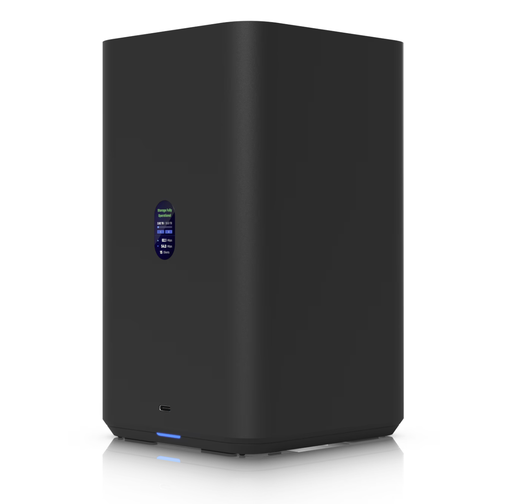
Ubiquiti UNAS-2-B UniFi NAS Network Attached Storage 2 Bay Black
UniFi UNAS 2 (UNAS-2-B): two 3.5" bays (drives sold separately) with RAID 1, 2.5 GbE, snapshots, Time Machine and cloud backup targets.
Ready to buy?
Shop genuine Ubiquiti at ARC IP Networks
Authorised Ubiquiti reseller
Ubiquiti at ARC IP Networks
UniFi gateways, switches, Wi-Fi, Protect cameras and Access. Genuine Australian stock with the full manufacturer's warranty, competitive prices and price match available.
Frequently asked questions
On FTTP, FTTC, HFC and Fixed Wireless, no: the gateway plugs into the nbn connection box with an Ethernet cable. On FTTN and FTTB you need a VDSL2-compatible modem connected to the telephone wall socket, because none of the UniFi Cloud Gateways we checked (UCG-Ultra, UCG-Max, UDR7) has a VDSL2 port.
Cabling connected to the telecommunications network must be done by a registered cabler (under ACMA's cabling rules), or by someone directly supervised by one. The work must follow the Wiring Rules (AS/CA S009:2020), and the cabler must give you a written compliance statement.
Ubiquiti recommends Cat6 for wired connections, and copper Ethernet runs are limited to about 100 m. TP-Link states that with Cat6a or higher cable, 10 Gbps connections work up to 100 m, so Cat6A gives the most headroom for future 10G devices.
nbn says registered cablers can relocate nbn equipment inside your home, following nbn standards and its Authority to Alter guide. Another option nbn lists is running an Ethernet cable from the connection box to where you want your router.
A UPS keeps your own equipment running, but nbn says each mains-powered device connected to the nbn needs its own backup. On FTTN, FTTB, FTTC, HFC and Fixed Wireless, service also depends on nbn equipment in your area having power.
Not by default. From June 2024 nbn no longer offers a Power Supply Unit with battery backup, but your phone and internet provider may be able to arrange one. Existing units power the connection box for up to about five hours.
Ubiquiti says hardwired APs give the best performance and stability. Each wireless mesh hop reduces throughput by about 50%, so use meshing only where you can't run cable, and keep it to two hops or fewer.
In our experience, usually at least one per level, and more for large or brick homes. Ubiquiti rates the U7 Pro at about 140 m², but walls and floors reduce that, so check signal strength and aim for −70 dBm or better throughout, which is Ubiquiti’s threshold for stable connections.
It's a good idea. UniFi lets you create a separate VLAN for IoT devices and isolate it from your other networks. Ubiquiti also suggests a 2.4 GHz-only WPA2 Wi-Fi network if older IoT devices have trouble with Wi-Fi 7 APs.
No. ASUSTOR states that RAID provides data protection, not data backup, and recommends the 3-2-1 rule: three copies of your data on two types of media, with one copy offsite.
Related guides
- UniFi Cloud Gateway Comparison 2026: UCG-Fiber vs Ultra vs Max vs UXG
- UDM Pro vs UDM SE vs UDM Pro Max: Which UniFi Dream Machine in 2026?
- Ubiquiti Australia: The Complete UniFi Buying Guide (2026)
- UniFi Access Points Compared 2026: Which Ubiquiti AP Do You Need?
- UniFi Switch Comparison 2026: Every Ubiquiti Switch Explained
- What PoE Switch Do I Need in Australia? PoE Budgets, 2.5G and Port Types Explained
- PoE for CCTV: 802.3af, 802.3at & 802.3bt Explained
- UniFi Doorbell Guide Australia: G4 Doorbell Pro vs G6 Entry vs Doorbell Lite, PoE, Chimes and No Subscription
- Starlink Router Guide (Australia): Using a UniFi Gateway with Starlink, Bypass Mode, CGNAT and Failover
- MikroTik vs Ubiquiti UniFi in Australia: Which Should You Choose for Your Network?
- Home Security Camera System Buying Guide: 2, 4, 6 or 8 Cameras?
- UniFi Protect Explained: Cameras, NVRs and How the System Works (Australia)
- Security Cameras Without a Subscription: How Local Recording Works
- How Much Storage Do You Need for Security Cameras? (2026 Sizing Guide)
- UPS for NBN, Wi-Fi and CCTV/NVR: Keep Internet and Cameras Running
- Best UPS for Comms Racks and Network Cabinets in Australia
- How to Size a UPS: VA vs Watts and Runtime Explained
- UPS for Home Office, NBN, Gaming and Home Theatre in Australia
- PowerShield UPS Runtime Chart (Official): Minutes at Every Load
- Online vs Line-Interactive UPS: Which Do You Need? (Australia)
- What Is a NAS? Network Attached Storage Explained (Australia)
- Best Home NAS in Australia: Backups, Photos and Streaming for Families
- NAS Backup Done Right: The 3-2-1 Rule and RAID 5 vs RAID 6 (Australia)
- 2-Bay vs 4-Bay vs 6-Bay NAS: How Many Bays Do You Need? (Australia)
- NAS vs Cloud Storage: What is Right for Australians?
- Is Your NAS Secure? 7 Ways to Lock Down an ASUSTOR NAS (Australia)
- Does a NAS Need a UPS? Protect Your ASUSTOR NAS (Australia)
- Replace Google Photos with a NAS in Australia
- 2.5GbE NAS: Is 2.5 Gigabit Ethernet Worth It? (Australia)
Who we are
About ARC IP Networks
ARC IP Networks is an Australian supplier of networking, Wi-Fi and gateway equipment, based in Blackburn, Melbourne, Victoria. We work with homeowners, installers, integrators and businesses across Australia, supplying Ubiquiti UniFi, MikroTik, TP-Link, Ruijie, Teltonika and D-Link.
We are an authorised Ubiquiti, MikroTik, TP-Link, Ruijie, Teltonika and D-Link reseller, so you get genuine Australian stock with the full manufacturer's warranty, never grey imports, at competitive prices. Our team can help you choose the right equipment, and trade customers get trade accounts and project pricing on larger jobs.
- Genuine Australian stock with the full manufacturer's warranty
- Competitive prices, price match available
- Trade accounts for installers, integrators and MSPs
- Australia-wide delivery; showroom in Blackburn, Mon–Fri 9–5 (demos by appointment)
Need help choosing?
Tell the ARC IP Networks team what you are setting up and we will recommend the right equipment and quote it as one order.