Can you replace the Starlink router with a third-party router like a UniFi gateway, and how do you do it?
Yes. Most Starlink kits connect to a third-party router over Ethernet. On Router 3, Router Mini and Mini you enable bypass mode in the Starlink app, which turns Starlink Wi-Fi off. Gen 2 routers need Starlink's Ethernet Adapter. Residential plans use CGNAT, so port forwarding needs a public-IP plan, but UniFi Teleport works behind NAT.
Why replace or add to the Starlink router?
The Starlink router is designed to get a household online quickly, and for many homes it is all you need. On a farm, a large rural block or a small business, people usually outgrow it for one of these reasons:
- Whole-property Wi-Fi. Starlink's own spec sheets list the Router 3 at up to 297 m² of coverage and the Router Mini at up to 204 m² (V4/V5 kit spec sheets; Starlink's Mini X sheet lists 120 m²). The Router 3 is configured for indoor use and the Router Mini is rated indoor only. Sheds, workshops, yards and second dwellings need more access points, including outdoor-rated ones.
- Network control. Starlink documents three Wi-Fi network modes on its router (Default, Guest and Auto). It also says its Wi-Fi routers do not support port forwarding or firewall rules for IPv4 or IPv6. A UniFi gateway adds VLAN/subnet segmentation, a zone-based firewall, IDS/IPS and policy-based routing.
- Cameras and door access. Several UniFi Cloud Gateways run UniFi Protect, so cameras record locally on the property instead of depending on the satellite link.
- VPN. UniFi gateways include VPN servers (Teleport, WireGuard, OpenVPN, L2TP) and Site Magic site-to-site links.
- Multi-WAN. Starlink notes that a third-party router can connect several Starlinks into one network and provide load balancing, traffic shaping and failover. A UniFi gateway can also combine Starlink with NBN, 4G or 5G.
One caveat from Starlink: it cannot guarantee performance or compatibility with third-party networking equipment, and some Starlink app features may not work as expected behind a third-party router.
What is Starlink bypass mode and what do you lose?
In Starlink's own words, bypass mode lets you turn off the Starlink router and connect a third-party router directly to Starlink. When bypass mode is on, the Starlink router's Wi-Fi features are completely disabled. You enable it in the Starlink app under Settings.
- You lose Starlink Wi-Fi. Every wireless device then connects through your UniFi gateway's built-in Wi-Fi or through UniFi access points.
- Only one IP address is handed out. Starlink says bypass mode is designed for third-party routers and will only provide one IP address. Plug your gateway in, not a switch.
- Turning it off needs a factory reset. Starlink says a factory reset is required to exit bypass mode. It also says factory reset from the Starlink app is not available while the router is in bypass mode, so you press the reset button on the router.
- Some app features may not work. Starlink says some Starlink app features may not work as expected with a third-party router.
- Status light. On Router 3 and Router Mini, a violet light shows bypass mode. It turns off after one hour.
Bypass mode is not used on every kit. Starlink says that on Enterprise, Performance (Gen 1) and Performance (Gen 2) kits you plug the third-party router into the power supply instead. On the original Gen 1 (round dish) router, you replace the router with your own.
How to connect a UniFi gateway to Starlink (Router 3 or Router Mini kits)
- Set up Starlink normally with the Starlink app, following the setup guide for your kit, and confirm it is online before you change anything.
- Check your kit (see the table above). If you have a Standard Actuated kit with the Gen 2 router, get the Starlink Ethernet Adapter first, because the Gen 2 router has no Ethernet ports.
- In the Starlink app, open Settings and enable Bypass mode. On Router 3 and Router Mini, a violet light confirms it and turns off after one hour. Starlink Wi-Fi is now disabled.
- Run an Ethernet cable to the UniFi gateway's WAN port. On Router 3, use LAN port 1 or 2 under the rear cover. On Standard Actuated, use the Ethernet Adapter. On Mini, use the Mini's Ethernet port with the Mini Starlink Cable. On Router Mini, use the free RJ45 port (1 or 2), the one not used by the cable from the power supply. On Router 3 and Router Mini kits, never plug the gateway into the Starlink power supply. Only on Enterprise and Performance (Gen 1/Gen 2) kits does a third-party router connect to the power supply.
- In UniFi Network, leave the Starlink WAN on DHCP (Starlink's recommendation) and enable IPv6 on that WAN if you plan to use Teleport.
- Check the WAN IP. An address in 100.64.0.0/10 means CGNAT, so plan remote access around Teleport and Site Manager rather than port forwarding.
- Add your second internet connection (NBN, 4G or 5G) to another WAN port and choose Failover or Load Balancing. Optionally create a custom SLA that pings 8.8.8.8 or 1.1.1.1, in line with Starlink's health-check advice.
- To undo it later, factory reset the Starlink router with its reset button. Starlink says app-based reset is not available while bypass mode is on.
What you physically need for each Starlink kit
Starlink has renamed and refreshed its kits several times. Starlink's Australian specifications pages for residential and roaming kits list Starlink V4 (with Router 3 or Router Mini), Starlink V5, Mini and Mini X. Find your kit below by checking it against the contents listed on Starlink's specifications page, or your order.
| Starlink kit (as named by Starlink) | Starlink router | How a UniFi gateway connects | Bypass mode |
|---|---|---|---|
| Standard Actuated (rectangular, motorised dish) | Gen 2 router, no Ethernet ports | Starlink Ethernet Adapter (sold separately) on the Gen 2 router, then Ethernet to the UniFi WAN port | Required, even with the adapter |
| Standard / Starlink V4 with Router 3 (spec sheet: "Standard 4 X") | Router 3: two latching LAN ports under a removable cover | Ethernet from Router 3 LAN port 1 or 2 to the UniFi WAN port. The dish cable plugs into the Router 3, so the router stays in place | Enable in the Starlink app |
| Starlink V4 with Router Mini (spec sheet: "Standard 4") | Router Mini: two 1 Gbps RJ45 ports | Leave the Router Mini connected to the Starlink power supply. Run Ethernet from the Router Mini's free RJ45 port (port 1 or 2) to the UniFi WAN port. Do not plug a UniFi gateway into the Starlink power supply: its ports are PoE outputs that power the dish and the Router Mini | Enable in the Starlink app |
| Starlink V5 with Router Mini | Router Mini | As for V4 with Router Mini: keep the Router Mini, use its free RJ45 port to the UniFi WAN port, and never connect the gateway to the power supply | Enable in the Starlink app |
| Starlink Mini / Mini X | Wi-Fi built into the dish. The Mini X also includes a separate Router Mini | Ethernet from the Mini's latching Ethernet port to the UniFi WAN port. Starlink recommends its Mini Starlink Cable to keep the dish weather-sealed | Enable in the Starlink app for the integrated router |
| Performance (Gen 1/Gen 2), Enterprise | Gen 2 router (Performance) or none; the power supply has Ethernet | Power supply straight to the UniFi WAN port | Usually not required |
Kit notes (checked against Starlink's pages and PDFs on 9 October 2026):
- Gen 2 router. Starlink says the Gen 2 router has no built-in Ethernet ports. You need the Ethernet Adapter to bypass it, and Starlink's accessory guide rates the adapter at up to 1 Gbps. The Gen 2 router also powers the dish, so it cannot be removed.
- Router 3. The setup guide has you plug the Starlink cable into the Router 3 port marked with the antenna symbol. You then remove the RJ45 cover and use port 1 or 2 for third-party hardware.
- Router Mini kits. Starlink's pages disagree: one article says Standard kits have built-in Ethernet on the power supply, but the Standard 4 setup guide shows the power supply's two ports as PoE outputs for the dish and the Router Mini. The method Starlink documents is to keep the Router Mini, enable bypass mode and use its spare RJ45 port. Check your kit's setup guide.
- Starlink Mini. Starlink says the Mini is no longer IP67 rated with a third-party RJ45 cable, which is why the Mini Starlink Cable is recommended. One Starlink support article says to use a USB-C to Ethernet adapter with Mini. The current Mini and Mini X spec sheets and setup guides describe a latching RJ45 Ethernet port behind the Starlink Plug. Check your unit.
Power: planning for off-grid and backup
Starlink publishes average power draw for each dish, which helps when you size solar, battery or UPS capacity for a remote property. These figures are from Starlink's spec sheets:
| Starlink | Average power consumption (Starlink spec) |
|---|---|
| Standard (V4) dish | 75–100 W |
| Starlink V5 | 35–50 W |
| Starlink Mini | 25–40 W (input rating 12–48 V, 60 W) |
| Standard Actuated | 50–75 W |
Add your UniFi gear on top. For example, techspecs.ui.com lists the UCG-Ultra at 6.2 W maximum, the UCG-Max at 16.1 W and the UDR7 at 26 W excluding PoE output. Starlink's accessories guide lists a DC-DC power supply for the Standard 4 X kit, which runs it from a DC source without an inverter.
Any new 230 V power point for a roof-mounted dish, a shed or a comms cabinet must be installed by a licensed electrician. Under ACMA's cabling rules, permanent data cabling inside walls or between buildings should be done by a registered cabler (see ACMA: cabling your home or office).
See also: UPS for NBN, Wi-Fi and CCTV/NVR.
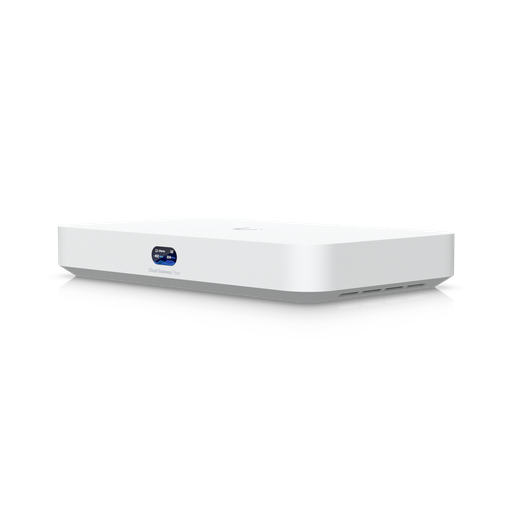
Shopping for UniFi Cloud Gateways?
Authorised Ubiquiti reseller: genuine Australian stock, full warranty, competitive prices and price match available.
CGNAT on Starlink: what it means for port forwarding and remote access
Starlink's support pages describe two IPv4 policies. The default uses Carrier-Grade NAT (CGNAT), with addresses from the 100.64.0.0/10 range handed out by DHCP. Starlink says this default policy does not allow inbound traffic. Starlink also states:
- The Starlink router does not support port forwarding. To port forward you need a third-party router and a public IP on your Starlink service.
- A public IPv4 address is an optional IP policy, available only on the Local Priority and Global Priority service plans. You switch it on in your Starlink account. Truly static IPs are not available, but a reservation system keeps the address, though relocating the dish or a software update may change it.
- Residential and Roam plans use CGNAT, with a limit of 1,200 concurrent sessions. When the limit is reached, new sessions drop the oldest. Starlink lists VoIP and video-call problems among the symptoms.
- Starlink supports native IPv6 on all routers, kits and plans, and delegates a /56 prefix via DHCPv6-PD.
- Some ports are blocked for all customers. For example, outbound TCP 25 (SMTP) and TCP 445 (SMB) are blocked.
To check your own connection in UniFi, Ubiquiti suggests comparing the WAN IP shown in Site Manager with a "what's my IP" search. If they differ, you do not have a public IP. A WAN address beginning 100.64–100.127 is in the CGNAT range.
Remote access to cameras and your network without a public IP
CGNAT blocks inbound connections, but several UniFi features still work because they start from inside your network. This is what the official documentation confirms:
- Teleport VPN. Ubiquiti says Teleport can be used when both the UniFi gateway and the client are behind NAT. Remote users connect through the WiFiman app, and Teleport uses WireGuard encryption. Ubiquiti notes that Teleport needs IPv6 on the gateway's WAN in some circumstances, which Starlink provides natively.
- Traditional VPN servers and port forwarding. For port forwarding and most VPNs except Teleport, Ubiquiti says a public IP is necessary. A WireGuard, OpenVPN or L2TP server on a Starlink CGNAT connection therefore needs a public-IP plan, or a public IP on another WAN.
- Site Magic SD-WAN. A Starlink site can join as a spoke. In Hub & Spoke the hub needs a public IP, and in Mesh at least one gateway must have a public IP. Ubiquiti says SD-WAN stays connected when WAN IPs change, including for gateways behind NAT.
- UniFi Site Manager and Protect. You can still manage the site and view cameras through Site Manager. However, Ubiquiti lists NAT and CGNAT as common causes of a "Slow" connection, which lowers remote UniFi Protect streaming performance. Recording itself stays local on the console.
- VPNs going out from the property. Starlink says SSTP, OpenVPN and WireGuard client-to-site VPNs generally work well with CGNAT, while PPTP and L2TP generally do not.
Starlink as primary or failover WAN alongside NBN, 4G or 5G
Ubiquiti says UniFi gateways support up to eight WAN interfaces, limited by the number of physical ports, with at least one kept for LAN. Each WAN can be set to one of two modes:
- Failover. One WAN carries traffic and the others wait on standby. Traffic returns to the primary when it recovers. This suits Starlink as the main link with NBN, 4G or 5G as backup, or the other way around.
- Load balancing. New connections are spread across WANs by weight (for example 80/20). Each session stays on one WAN until it ends.
- Dedicated WAN for specific traffic. With policy-based routing you can send a VLAN or particular devices, such as cameras or guest Wi-Fi, out a chosen WAN.
Health checks. UniFi's default "Auto" check pings ping.ui.com and resolves ui.com via 1.1.1.1 and 8.8.8.8, and marks a WAN down if two of the three fail. You can also create a custom SLA with your own verification servers, intervals and loss, latency or jitter thresholds. Starlink's own recommendation for third-party routers is to ping a public IP such as 8.8.8.8 or 1.1.1.1 every 10 seconds and mark the link down after 5 consecutive failures. Starlink notes that its DNS servers do not respond to ping. It also says to set the router's WAN to DHCP.
Cellular backup. UniFi 5G devices (the 5G Max family and U5G Backup) can plug into WAN1 or WAN2 as a standard WAN. UniFi LTE Backup connects to a PoE LAN port instead and does not use a WAN port. Ubiquiti recommends setting a data limit. It notes that UniFi LTE Backup and 5G Backup automatically purchase additional data unless a limit is set.
Two Starlinks. Starlink says multiple Starlinks at one location should be at least 3 m apart, mount centre to mount centre. A third-party router can then combine them with load balancing and failover.
Related: UniFi U5G as internet backup and UDR-5G-Max review.
Which UniFi gateway suits a Starlink property?
| Gateway | Max WAN ports | Default WAN ports | Built-in Wi-Fi | UniFi Protect | Operating temp. |
|---|---|---|---|---|---|
| UCG-Ultra | 4 | 1 × 2.5 GbE (plus 4 × 1 GbE) | No | No (Network only) | -10 to 40 °C |
| UXG-Max | 4 | 1 × 2.5 GbE (5 × 2.5 GbE total) | No | No | -10 to 40 °C |
| UCG-Max | 4 | 1 × 2.5 GbE (5 × 2.5 GbE total) | No | Yes (NVMe SSD up to 2 TB) | -10 to 40 °C |
| UDR7 | 4 | 1 × 10G SFP+, 1 × 2.5 GbE | Wi-Fi 7, 160 m² | Yes (64 GB microSD pre-installed) | -10 to 40 °C |
| UCG-Industrial | 5 | 1 × 10G SFP+, 1 × 10 GbE, 1 × 2.5 GbE | Wi-Fi 7, 115 m² | Yes (128 GB microSD pre-installed) | -30 to 50 °C |
All five list Multi-WAN load balancing, Teleport, WireGuard and Site Magic on techspecs.ui.com. For a full side-by-side, see our cloud gateway comparison.
Outdoor Wi-Fi for rural properties
Starlink's spec sheets describe the Router 3 as "configured for indoor use" and the Router Mini as indoor only. Starlink's router outdoor mode is available only to accounts created in Japan. Starlink mesh nodes are not compatible with third-party mesh systems. So once a UniFi gateway takes over, outdoor coverage comes from UniFi outdoor access points.
- U7-Outdoor: Wi-Fi 7, IPX6, up to 465 m² coverage, 2.5 GbE uplink. It is powered by PoE+ (19 W max), rated for -30 to 60 °C, and comes with wall and pole mounts. Ubiquiti also lists wireless meshing.
- Powering it: it needs PoE+. The UDR7's single PoE port is rated 15.4 W (PoE), which is not enough. The UCG-Industrial has PoE+ and PoE+++ ports, or you can use a PoE+ switch or injector.
- Placement: mount APs where they serve the yard, sheds and work areas, not where the Starlink dish goes. The dish needs its own clear view of the sky.
For camera planning on large blocks, see best farm security cameras in Australia, and for indoor APs see UniFi access points compared.
Why buy from ARC IP Networks
ARC IP Networks is an authorised Ubiquiti reseller. Every UniFi gateway and access point we sell is genuine Australian stock with the full manufacturer's warranty, at competitive prices, with price match available. Our team can help you choose the right gateway for your Starlink kit and backup link.
Our picks
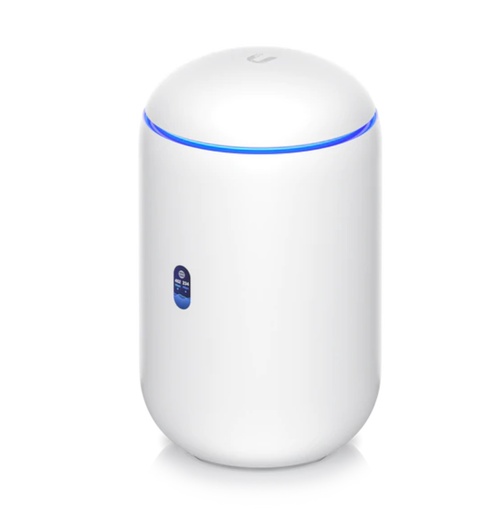
Ubiquiti UDR7 UniFi Dream Router 7 — WiFi 7 Router with 10G SFP+ WAN, 2.3 Gbps IDS/IPS, Built-In NVR (300+ Clients)
UDR7 gives built-in Wi-Fi 7 (160 m²) to replace bypassed Starlink Wi-Fi, up to 4 WAN ports for Starlink plus NBN or 5G, and UniFi Protect on a pre-installed 64 GB microSD.
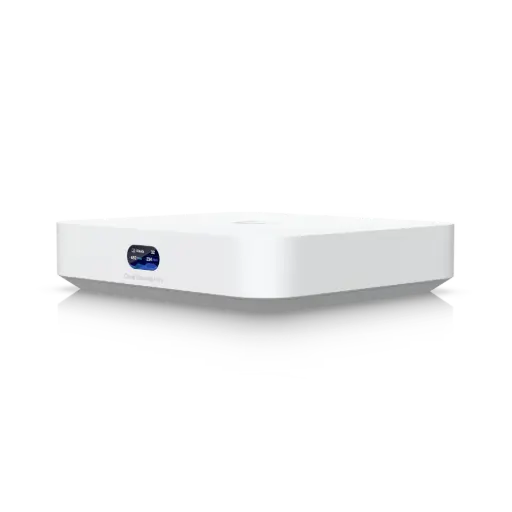
Ubiquiti UCG-Ultra-AU UniFi Controller Cloud Gateway Ultra
UCG-Ultra has a 2.5 GbE WAN port, up to 4 WAN ports with failover and load balancing, and Teleport for CGNAT-friendly remote access, at only 6.2 W maximum draw.
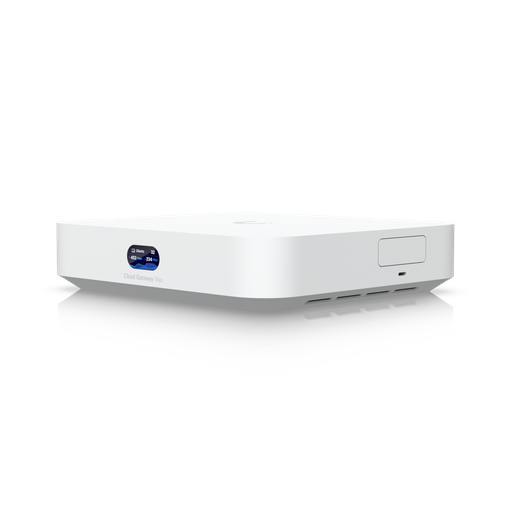
Ubiquiti UCG-Max-AU UniFi Controller Cloud Gateway Max
UCG-Max has five 2.5 GbE ports (up to 4 WAN) and runs UniFi Protect on an optional NVMe SSD of up to 2 TB, so recordings stay on the property.
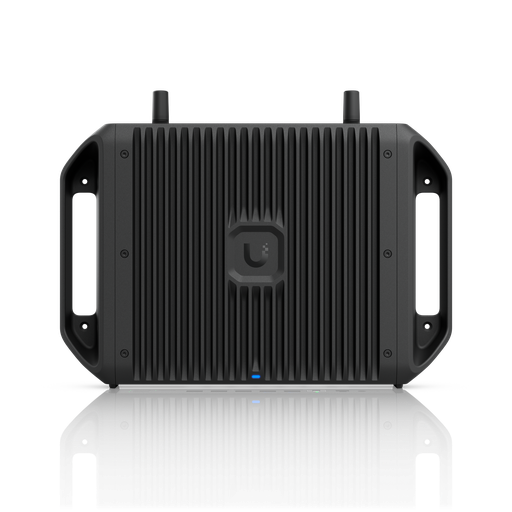
Ubiquiti UCG-Industrial Cloud Gateway Industrial
UCG-Industrial is rated -30 to 50 °C, has up to 5 WAN ports, Wi-Fi 7 and PoE+/PoE+++ ports that can power outdoor APs and cameras. techspecs.ui.com lists no weatherproof rating, so mount it under cover.
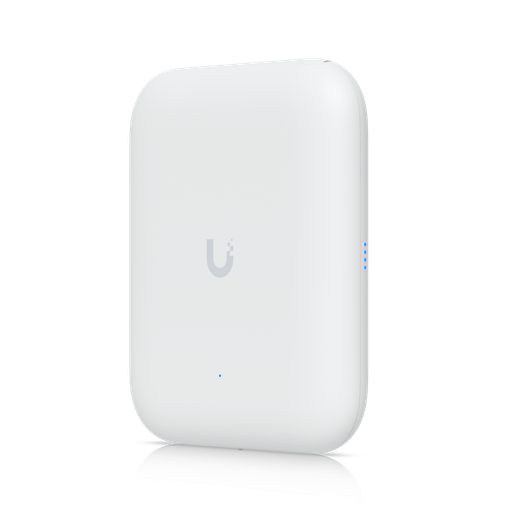
Ubiquiti U7-Outdoor UniFi WiFi 7 Outdoor AP — All-Weather IPX6, 465 m² Coverage, 2.5 GbE, PoE+ (Injector Not Included)
U7-Outdoor offers Wi-Fi 7, IPX6 weatherproofing, up to 465 m² coverage and wireless meshing. It needs PoE+ (injector not included).
Ready to buy?
Shop genuine Ubiquiti at ARC IP Networks
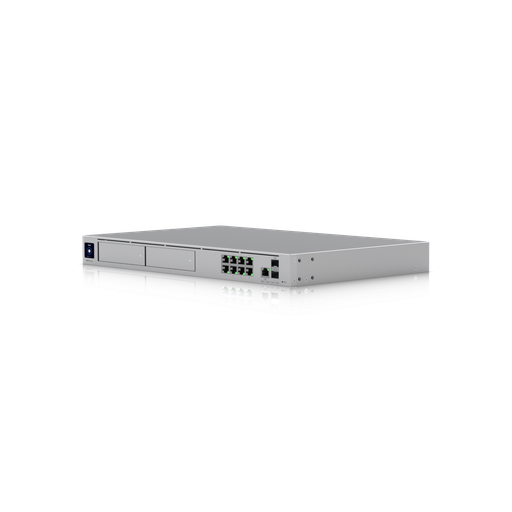
Authorised Ubiquiti reseller
Ubiquiti at ARC IP Networks
UniFi gateways, switches, Wi-Fi, Protect cameras and Access. Genuine Australian stock with the full manufacturer's warranty, competitive prices and price match available.
Frequently asked questions
Yes. Starlink says most kits support a third-party router over Ethernet, but the connection method depends on the kit. Starlink also says it cannot guarantee performance or compatibility with third-party equipment.
The Starlink router's Wi-Fi is completely disabled, so your UniFi gateway or access points must provide Wi-Fi. Bypass mode also hands out only one IP address, and some Starlink app features may not work as expected.
Factory reset the Starlink router. Starlink says reset from the app is not available in bypass mode, so use the reset button: on Router 3 it is under the LAN port cap, and on Router Mini it is on the back.
You need it on Standard Actuated kits, whose Gen 2 router has no Ethernet ports; Starlink says the adapter is needed to bypass that router. Performance (Gen 1) kits connect through the power supply instead. Router 3 and Router Mini have their own Ethernet ports.
Not on the Starlink router, and not on the default CGNAT IP policy, which blocks inbound traffic. Starlink says you need a third-party router plus a public IP, which is optional on the Local Priority and Global Priority plans.
Usually yes, through UniFi Site Manager. Ubiquiti lists NAT and CGNAT as common causes of a 'Slow' Site Manager connection, which lowers remote UniFi Protect streaming performance. Teleport VPN is an alternative that works when the gateway is behind NAT.
Yes. UniFi gateways support multiple WANs in Failover or Load Balancing mode, and policy-based routing can send chosen VLANs or devices out a specific WAN.
Starlink says VPNs over TCP or UDP are supported, and that OpenVPN, WireGuard and SSTP client-to-site VPNs generally work well with CGNAT, while PPTP and L2TP generally do not. Ubiquiti says a public IP is necessary for port forwarding and most VPNs, Teleport being the exception.
Starlink says its routers are not compatible with third-party mesh systems. With a UniFi gateway in charge, use UniFi access points for coverage.
They can. Starlink says Residential and Roam plans have a 1,200 concurrent-session limit, and when it is reached the oldest sessions are dropped. Starlink lists dropped VoIP calls and frozen or dropped video meetings among the common symptoms.
Related guides
- UniFi Cloud Gateway Comparison 2026: UCG-Fiber vs Ultra vs Max vs UXG
- UniFi U5G: Internet Backup as an Accessory — 5G RedCap Explained (2026 Australian Guide)
- Ubiquiti UDR-5G-Max Review: The 5G Dream Router in Australia
- Best Farm Security Cameras in Australia (2026): Rural Surveillance Systems Compared
- UniFi Access Points Compared 2026: Which Ubiquiti AP Do You Need?
- UPS for NBN, Wi-Fi and CCTV/NVR: Keep Internet and Cameras Running
- UPS for Mining and Remote Sites in Australia: Rugged Power Protection
- Does CCTV Work Without Internet or Wi-Fi?
- Ubiquiti Australia: The Complete UniFi Buying Guide (2026)
Who we are
About ARC IP Networks
ARC IP Networks is an Australian supplier of networking, Wi-Fi and gateway equipment, based in Blackburn, Melbourne, Victoria. We work with homeowners, installers, integrators and businesses across Australia, supplying Ubiquiti UniFi, MikroTik, TP-Link, Ruijie, Teltonika and D-Link.
We are an authorised Ubiquiti, MikroTik, TP-Link, Ruijie, Teltonika and D-Link reseller, so you get genuine Australian stock with the full manufacturer's warranty, never grey imports, at competitive prices. Our team can help you choose the right equipment, and trade customers get trade accounts and project pricing on larger jobs.
- Genuine Australian stock with the full manufacturer's warranty
- Competitive prices, price match available
- Trade accounts for installers, integrators and MSPs
- Australia-wide delivery; showroom in Blackburn, Mon–Fri 9–5 (demos by appointment)
Need help choosing?
Tell the ARC IP Networks team what you are setting up and we will recommend the right equipment and quote it as one order.