Surveillance Center is ASUSTOR's free app that turns an ASUSTOR NAS into a network video recorder (NVR). Install it from App Central, add IP cameras with ONVIF (Profile S or T) or RTSP, and record continuously, on a schedule, or on motion and alarm events. Every NAS includes four free camera channels; add licences for more, up to 12 on the Drivestor 4 Gen2, 44 on the AS54 and Lockerstor Gen2+, and 72 on the Lockerstor 4 Gen3. Watch live and recorded video in a browser on Windows or with the AiSecure app.
ARC IP Networks is a trusted ASUSTOR supplier in Australia: genuine ASUSTOR NAS and accessories at competitive prices, with the full ASUSTOR manufacturer warranty, Australia-wide delivery and trade pricing.
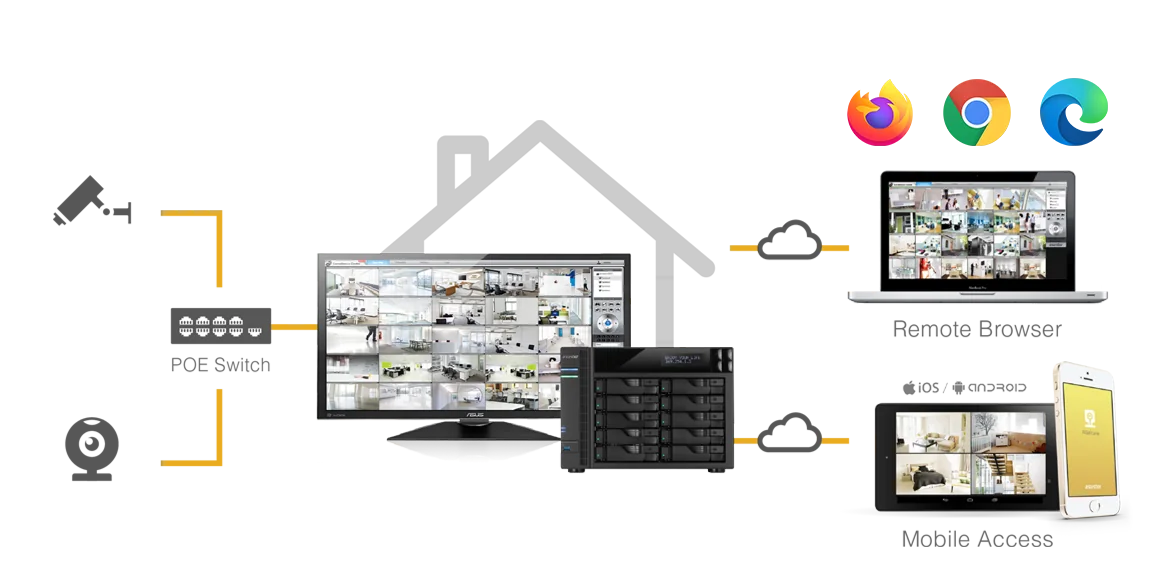
Surveillance Center at a glance
| Feature | What ASUSTOR lists |
|---|---|
| Price | Free app from App Central; 4 camera channels included |
| Camera connection | ONVIF Profile S and Profile T, or RTSP; integrated camera models |
| Recording modes | Manual, continuous or scheduled, motion trigger, alarm trigger, motion and alarm |
| Smart search | Motion, foreign object and missing object detection in recordings |
| Alerts | Email, SMS and push notifications through AiSecure |
| Viewing | Microsoft Edge, Firefox or Chrome on Windows; AiSecure for Android and iOS |
| Live view tools | PTZ control, up to 5 patrol paths, two-way audio, e-maps, fisheye dewarping |
| Users | Manager and Viewer roles, plus custom roles per camera |
| Storage | Quotas by space or retention period, custom save location, MyArchive cold backup |
| Integrity | Digital watermark on recordings, with a verification tool for exports |
Source: ASUSTOR Surveillance Center pages and knowledge base.
How many cameras can each ASUSTOR NAS record?
Every model starts with four free channels. Above that, you add camera licences (ASUSTOR sells single and four-camera licence packs), up to the model's limit:
Swipe the table sideways to compare all models →
| Model | Free channels | Maximum channels (with licences) | Processor | Bays |
|---|---|---|---|---|
| Drivestor 2 Gen2 (AS1202T) | 4 | 12 | Realtek RTD1619B | 2 |
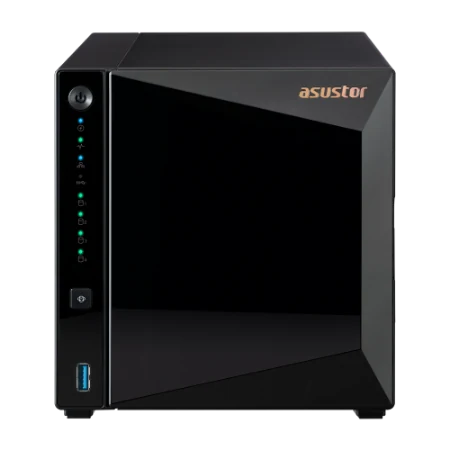
| Drivestor 4 Gen2 (AS1204T) | 4 | 12 | Realtek RTD1619B | 4 |
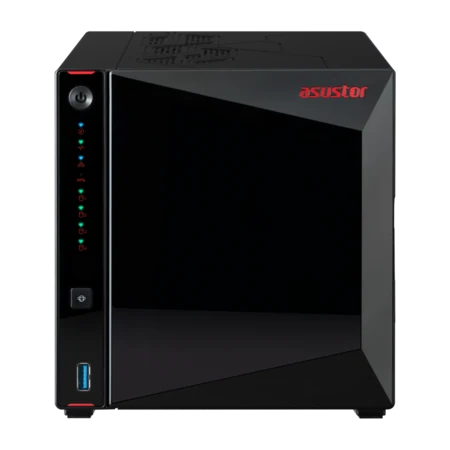
| Drivestor 4 Pro Gen2 (AS3304T v2) | 4 | 25 | Realtek RTD1619B | 4 |
| Nimbustor 4 Gen2 (AS5404T) | 4 | 44 | Intel Celeron N5105 | 4 |
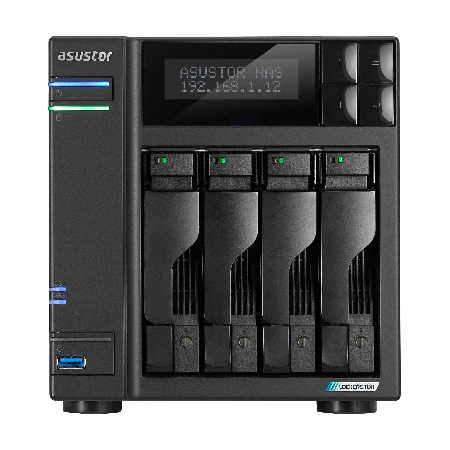
| Lockerstor 4 Gen2+ (AS6704T v2) | 4 | 44 | Intel Celeron N5105 | 4 |
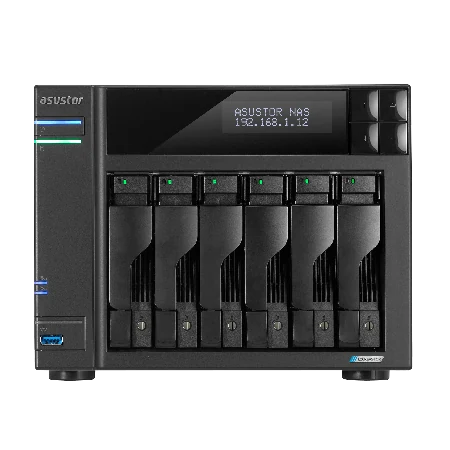
| Lockerstor 6 Gen2+ (AS6706T v2) | 4 | 44 | Intel Celeron N5105 | 6 |
| Lockerstor 4 Gen3 (AS6804T) | 4 | 72 | AMD Ryzen V3C14 | 4 |
Source: ASUSTOR product overview and specification pages. Real limits also depend on camera resolution, bitrate and other apps running.
For most homes, the four free channels cover a front door, driveway, backyard and side gate. A small business with eight to twenty cameras is better served by an AS54 or Lockerstor, which have more processing headroom and room for larger drives.
How to connect an IP camera with ONVIF
ONVIF is the industry standard that lets cameras and recorders from different brands work together. ASUSTOR's Surveillance Center is certified for ONVIF Profile S and Profile T, which gives you device search, live view and recording, PTZ control, in-camera motion detection, digital input and camera video settings. First enable ONVIF in the camera's own settings and note its port, username and password.
- In Surveillance Center, open Settings > Camera and click Add.
- Choose to search for ONVIF-compliant cameras on your local network and select the camera.
- Enter the camera's administrator username and password.
- Click Test. A snapshot or green tick means it is working.
If the camera is not found, add it manually: brand ONVIF, model Generic, then the camera's IP or host, HTTP port (usually 80), username and password, and test again. ASUSTOR notes that with dual-lens cameras connected by ONVIF, only one lens stream is available.
How to connect an IP camera with RTSP
If a camera does not support ONVIF, use its RTSP stream. You need the camera's RTSP path, which the camera maker publishes.
- Click Add under Settings > Camera and choose to enter the camera information manually.
- Brand: User-Defined. Model: RTP over RTSP (TCP), or RTSP and RTP over HTTP.
- Enter the IP or host, HTTP port, the RTSP path (it looks like
rtsp://ip_address/channel1, using your camera's channel), the RTSP port (normally 554), username and password. - Click Test and look for the green tick. Cameras with several streams can use Multiple RTP over RTSP (TCP).
| Function | RTSP | ONVIF |
|---|---|---|
| Live viewing | Supported | Supported |
| Video recording | Supported | Supported |
| PTZ control | Not supported | Supported |
| Camera video settings | Not supported | Supported |
| Event detection | Not supported | Supported |
Source: ASUSTOR knowledge base, "Differences between ONVIF and RTSP".
So use ONVIF whenever the camera offers it: motion-triggered recording based on camera events and PTZ control need it.

Recording modes, smart search and storage
Surveillance Center offers manual recording from live view, continuous 24/7 or scheduled recording, motion-triggered and alarm-triggered recording, or both triggers together. ASUSTOR points out that event-based recording saves disk space and reduces reads and writes, which can prolong drive life.
To find footage, the timeline supports synchronous and asynchronous playback, and smart search looks through recordings for motion, a foreign object appearing, or a missing object in an area you mark.
Plan the storage
- Recording quotas by storage space or retention period, with different quotas per camera priority.
- Custom save location, so recordings can sit on their own volume or shared folder.
- MyArchive cold backup: schedule recordings to MyArchive drives to free space, and mount them later to search and play back.
- Digital watermark on stored recordings, plus ASUSTOR's tool to check an exported clip has not been edited.
How many terabytes you need depends on resolution, codec, frame rate and days kept. Our security camera storage sizing guide walks through the maths; pair it with how much NAS storage do you need and NAS-rated drives from our hard drive guide.

User privileges in Surveillance Center
Only the ADM admin account can open Surveillance Center at first. To give other people access:
- In ADM, open Access Control > App Privileges and allow the user to use Surveillance Center.
- In Surveillance Center, go to Settings > Privilege.
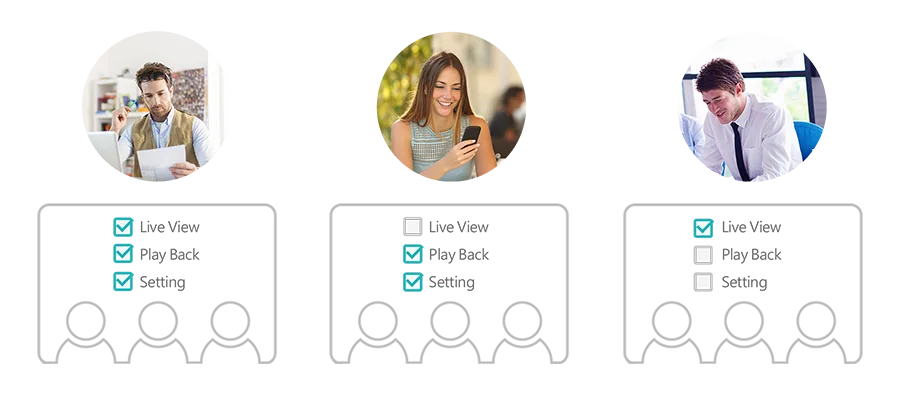
- Assign a role. Managers can use every function; Viewers can use Live View and Playback only. Every user except admin is a Viewer by default.
- For finer control, click Edit Role and + to create custom roles with live view, camera control, audio and playback rights for each camera.
Give each person their own account, so you can see who viewed or exported footage, and remove access when staff leave.
Live view, alerts and the AiSecure app
On a computer, Surveillance Center runs in Microsoft Edge, Firefox or Chrome on Windows, over HTTPS if you enable it. Live view includes PTZ controls, snapshots, recording, two-way audio on cameras with a microphone and speaker, camera patrols, interactive e-maps and fisheye dewarping.
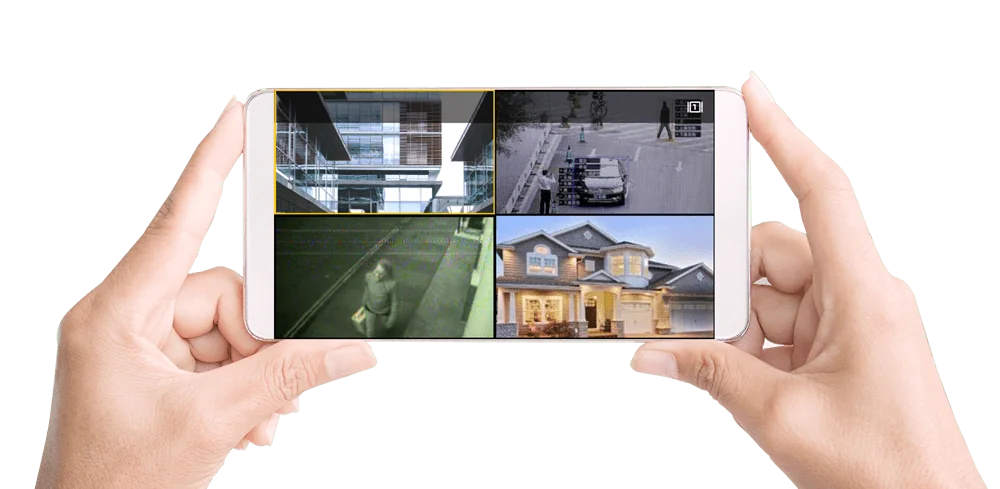
AiSecure for Android and iOS shows live views, lets you swipe between cameras, switches cameras on or off for privacy, and receives push notifications when events occur. Surveillance Center transcodes streams so phones can play them even without the camera's codec. Event rules can also email or SMS people, start recording on other cameras, send a PTZ camera on patrol, or trigger external devices over HTTP.
Viewing away from home goes through your NBN upload; see access your NAS remotely for EZ-Connect and CG-NAT.
Two things to know: disk hibernation and updates
Drives will not hibernate while recording
ASUSTOR's knowledge base lists Surveillance Center among the apps that keep accessing disks, so a recording NAS will not enter disk hibernation. That is expected. If you also want quiet, power-saving drives for other data, keep recordings on their own volume and choose NAS or surveillance-rated drives built for constant writes. You can check disk hibernation under Settings > Hardware > Energy Control.
Keep Surveillance Center updated
ASUSTOR has pushed emergency Surveillance Center updates for security issues and urges users to install the latest version promptly. Its standing advice: strong passwords, change the default ADM ports 8000 and 8001, turn off SSH and SFTP if unused, keep backups and snapshots current, and enable the AbuseIPDB risk-detection greylist.
NAS recorder or dedicated NVR?
A NAS with Surveillance Center makes sense when you want one box for files, backups and a handful of cameras. A dedicated camera system can suit larger or simpler-to-manage sites. ARC IP Networks supplies both, so compare:
- Mixing brands on a recorder: can you mix Hikvision with third-party or ONVIF cameras on an NVR?
- Two complete camera ecosystems: Hikvision vs Ubiquiti UniFi Protect
- How UniFi Protect cameras and recorders work: UniFi Protect explained
- Australian rules for home cameras: CCTV laws in Australia
- Keeping cameras and recorder running in a blackout: UPS for security systems and does a NAS need a UPS
Whichever cameras you choose, confirm they support ONVIF Profile S or T, or publish an RTSP path, before buying them for Surveillance Center.
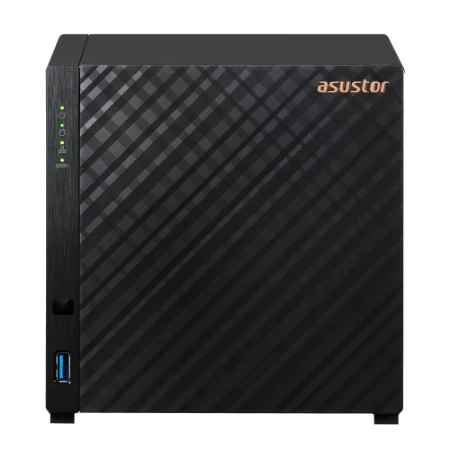
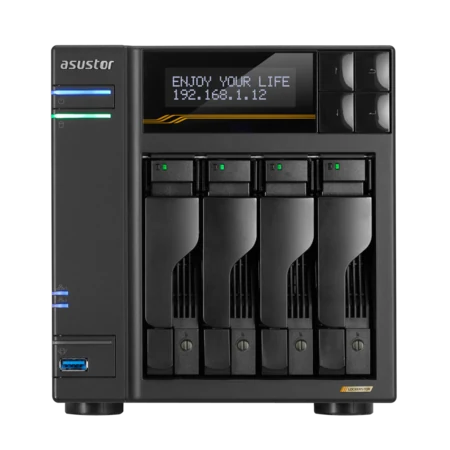
Genuine ASUSTOR NAS for Surveillance Center
Genuine ASUSTOR with the 3-year ASUSTOR warranty. Current pricing is on each product page.
Build it with ARC IP Networks
We supply genuine ASUSTOR NAS, IP cameras, PoE switches and UPS at competitive prices, and we design camera systems for homes and businesses across Australia.
- Camera selection with ONVIF Profile S or T, or published RTSP paths
- PoE switch and cabling plan from our networking range
- Storage sized for your resolution and retention, with surveillance-ready drives
- PowerShield UPS so cameras and recorder ride through outages
- Trade and project pricing for installers and multi-site rollouts
Common questions
Straight answers from the ARC IP Networks team. Last reviewed October 2026.
Surveillance Center is a free app from App Central that turns an ASUSTOR NAS into a network video recorder. It records IP cameras, supports live view and playback in a browser or the AiSecure app, and includes four free camera channels.
Every model includes four free channels. With licences, ASUSTOR lists up to 12 channels on the Drivestor Gen2, 25 on the Drivestor Pro Gen2, 44 on the AS54 and Lockerstor Gen2+, and 72 on the Lockerstor 4 Gen3.
Enable ONVIF on the camera, then in Surveillance Center open Settings, Camera, Add, search for ONVIF cameras, select the camera, enter its admin username and password and click Test. If it is not found, add it manually with brand ONVIF and model Generic.
Yes. Add the camera manually with brand User-Defined and model RTP over RTSP (TCP), then enter the RTSP path and port 554. RTSP supports live view and recording, but PTZ control, video settings and event detection need ONVIF.
Allow the user in ADM Access Control, App Privileges, then assign a role in Surveillance Center Settings, Privilege. Managers can use all functions and Viewers only Live View and Playback. You can also create custom roles per camera.
Surveillance Center keeps accessing the disks while it records, so disk hibernation will not occur. ASUSTOR lists it with other apps that scan or write in the background. Keep recordings on their own volume if you want other drives to rest.
Yes. The AiSecure app for Android and iOS shows live views, switches between cameras, controls PTZ and two-way audio, and sends push notifications when Surveillance Center detects events.
ARC IP Networks is a trusted ASUSTOR supplier in Australia, with genuine ASUSTOR NAS, IP cameras, PoE switches and UPS, the full manufacturer warranty, Australia-wide delivery and competitive prices. Call 1300 100 440.
Planning cameras on a NAS?
Tell us how many cameras, which brand and how long to keep footage. We will size the NAS, drives, switch and UPS, with trade and project pricing.