RAID combines several drives so your NAS keeps working when one fails. On an ASUSTOR NAS: RAID 1 mirrors two drives (one can fail); RAID 5 needs at least three drives and survives one failure; RAID 6 needs at least four and survives two; RAID 10 needs at least four and combines mirroring with striping for speed. For a two-bay NAS choose RAID 1; for four bays, RAID 5 for capacity or RAID 6 and RAID 10 for extra safety or speed.
RAID is not a backup: ASUSTOR stresses that data can still be lost if several drives fail together, so keep a separate copy. ARC IP Networks is a trusted ASUSTOR supplier in Australia: genuine ASUSTOR NAS and accessories at competitive prices, with the full ASUSTOR manufacturer warranty, Australia-wide delivery and trade pricing.
RAID levels at a glance
Minimum drives, failures tolerated and usable capacity are ASUSTOR's own figures. The example column shows usable space with 8 TB drives.
Swipe the table sideways to compare all models →
| RAID level | Minimum drives | Drive failures tolerated | Usable capacity | Example with 8 TB drives |
|---|---|---|---|---|
| Single | 1 | 0 | Drive capacity | 1 drive: 8 TB |
| JBOD | 2 | 0 | Total of all drives | 2 drives: 16 TB |
| RAID 0 | 2 | 0 | Total of all drives | 2 drives: 16 TB |
| RAID 1 | 2 | 1 | Smallest drive | 2 drives: 8 TB |
| RAID 5 | 3 | 1 | Smallest drive x (drives - 1) | 4 drives: 24 TB |
| RAID 6 | 4 | 2 | Smallest drive x (drives - 2) | 4 drives: 16 TB |
| RAID 10 | 4 | 1 per mirrored pair | Smallest drive x (drives / 2) | 4 drives: 16 TB |
Source: ASUSTOR ADM RAID page (minimum drives, faults tolerated, capacity formulas) and knowledge base. RAID 10 tolerance shown per mirrored pair. Drive makers count 1 TB as 1,000 GB, so ADM shows slightly less.
RAID 0, 1, 5, 6 and 10 explained
ASUSTOR's knowledge base describes the common RAID types like this, in plain terms:
RAID 0: speed, no protection
Data is striped across two or more drives for faster reads and writes, but there is no redundancy. If any drive fails, everything on the volume is lost. Use it only for scratch space you can recreate.
RAID 1: a mirror of two drives
Two drives hold identical data. If one fails, the other carries on and ADM rebuilds onto the replacement. ASUSTOR notes RAID 1 is simple, with good read performance, though writes can be slower. It is the natural choice for a two-bay NAS.
RAID 5: capacity with single-drive protection
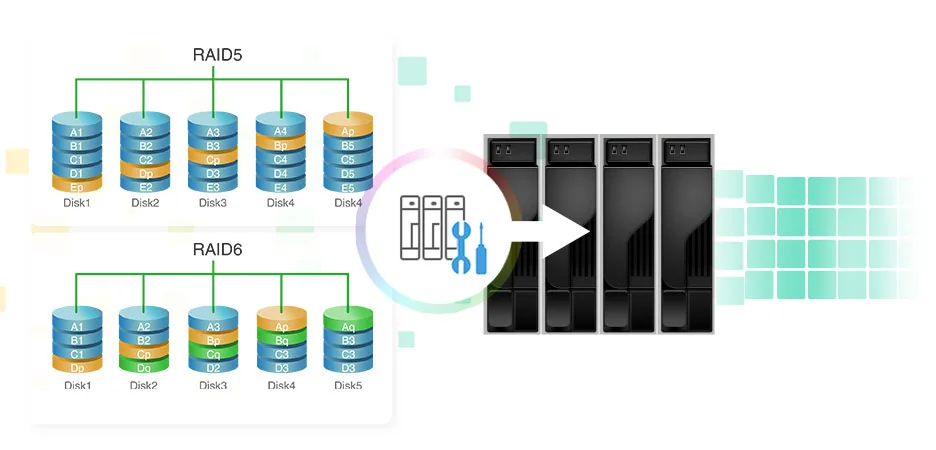
Data and parity are spread across three or more drives. One drive can fail and its data is rebuilt from parity on the others. You lose one drive's worth of space, which makes RAID 5 the most space-efficient protected level on four bays.
RAID 6: two-drive protection
Like RAID 5 but with two sets of parity, so two drives can fail. It needs at least four drives and costs two drives of capacity. Whether RAID 5 or RAID 6 is right for your drive sizes is covered in depth in our 3-2-1 backup and RAID 5 vs RAID 6 guide.
RAID 10: mirrors, striped
RAID 10 stripes data across mirrored pairs, giving excellent read and write performance and protection. It needs at least four drives and gives you half the raw capacity. It suits databases, virtual machines and busy shared folders.
Larger ASUSTOR systems also support RAID 50 and RAID 60 (multiple RAID 5 or RAID 6 sets), from six and eight drives respectively.
How many drives do you need?
ASUSTOR's answer is that it depends on your needs and your model. You can run a NAS with one drive as plain storage, but you need at least two for RAID 1, and ASUSTOR notes that more drives give more space and higher fault tolerance. Plan for expected growth, not just today's data.
Swipe the table sideways to compare all models →
| Model | Bays | RAID levels supported | Hot-swap drives |
|---|---|---|---|
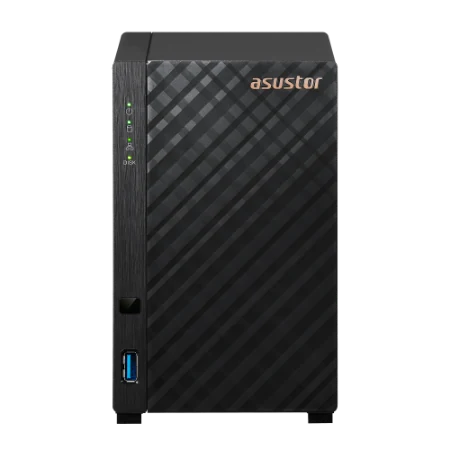
| Drivestor 2 Gen2 (AS1202T) | 2 | Single, JBOD, RAID 0, 1 | Not listed |
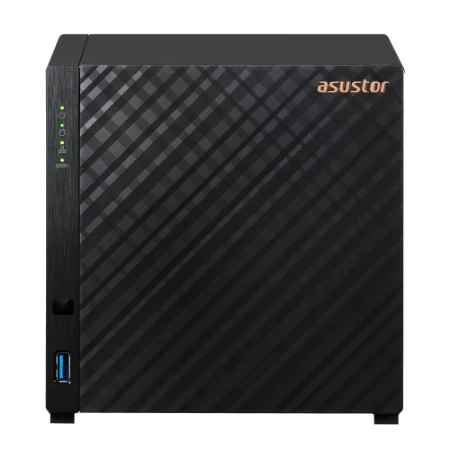
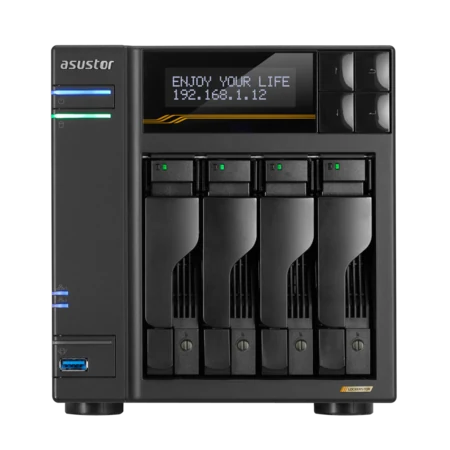
| Drivestor 4 Gen2 (AS1204T) | 4 | Single, JBOD, RAID 0, 1, 5, 6, 10 | Not listed |
| Drivestor 4 Pro Gen2 (AS3304T v2) | 4 | Single, JBOD, RAID 0, 1, 5, 6, 10 | Yes |
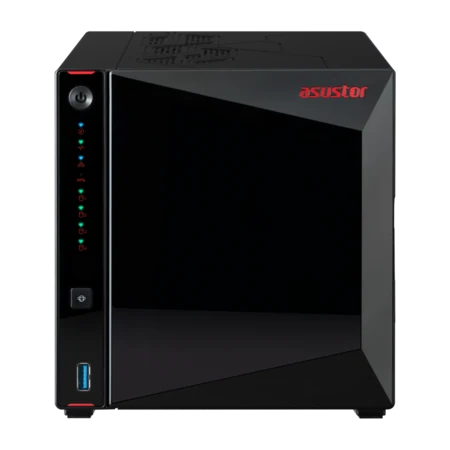
| Nimbustor 4 Gen2 (AS5404T) | 4 | Single, JBOD, RAID 0, 1, 5, 6, 10 | Yes |
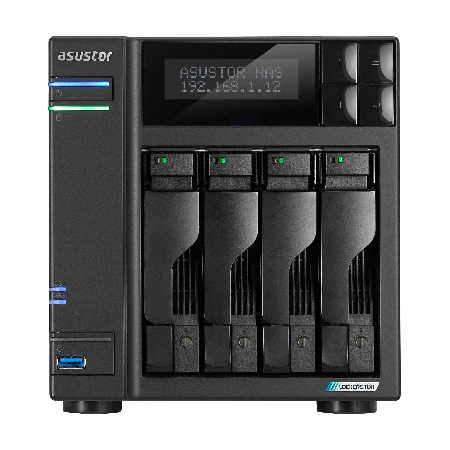
| Lockerstor 4 Gen2+ (AS6704T v2) | 4 | Single, JBOD, RAID 0, 1, 5, 6, 10 | Yes |
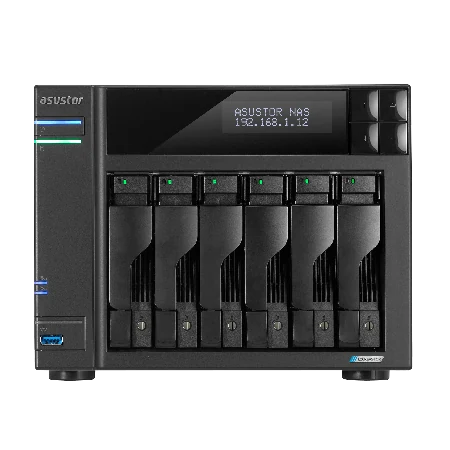
| Lockerstor 6 Gen2+ (AS6706T v2) | 6 | Single, JBOD, RAID 0, 1, 5, 6, 10 | Yes |
| Lockerstor 4 Gen3 (AS6804T) | 4 | Single, JBOD, RAID 0, 1, 5, 6, 10 | Yes |
| Flashstor 6 Gen2 (FS6806X) | 6 x M.2 | Single, JBOD, RAID 0, 1, 5, 6, 10 | Power off first (FS68) |
Sources: ASUSTOR specification pages; hot-swap from the specification pages and ASUSTOR knowledge base (FS67 and FS68 must be powered off; M.2 SSDs are never hot-swapped).
Choosing between two, four and six bays is a bigger decision than the RAID level; our 2-bay vs 4-bay vs 6-bay guide walks through it.
What is the safest RAID for a NAS?
ASUSTOR's knowledge base makes an important point: RAID improves availability, but the safety of your data does not depend on RAID alone. Several drives can fail together, and other hardware faults can stop an array working. That is why ASUSTOR pairs RAID with regular backups, firewalls and its security recommendations.
In practice, ARC IP Networks suggests:
- Two bays: RAID 1, plus a USB or cloud backup.
- Four bays, mostly media and backups: RAID 5, plus a backup of anything irreplaceable.
- Four or more bays with large drives or business data: RAID 6, so a second failure during a rebuild does not take the volume.
- Four bays for VMs, databases or video editing: RAID 10 for speed with protection.
- Every NAS: Btrfs snapshots, an off-site copy and a UPS.
Why doesn't ASUSTOR offer Hybrid RAID?
Some NAS brands offer "hybrid" RAID for mixed drive sizes. ASUSTOR has chosen not to, and its knowledge base gives these reasons:
- Drives bought at different times often differ in speed, which can slow the whole array.
- Uneven capacities have to be divided to match, which can also affect speed and experience.
- Smaller drives are usually older and closer to the end of their life, and every replacement means a rebuild that carries more risk with mixed ages.
- Hybrid RAID cannot always use an odd number of drives, wasting the leftover drive.
ASUSTOR recommends same-capacity drives in an array. If you mix sizes anyway, ADM calculates capacity from the smallest drive. For old, smaller drives, ASUSTOR suggests using them as MyArchive archive drives instead of putting them in the RAID.
Growing and maintaining a RAID volume in ADM
RAID migration
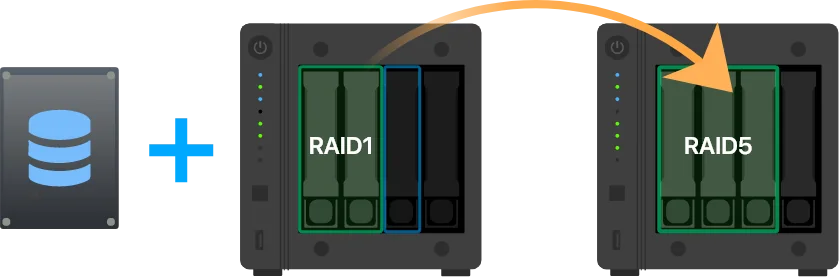
Your RAID level is not fixed. ADM can migrate a volume to a higher level without deleting it, and the NAS stays usable during the migration. ASUSTOR's own example: start an AS5404T with two drives in RAID 1, then add a third drive and migrate to RAID 5 for more space.
Capacity expansion
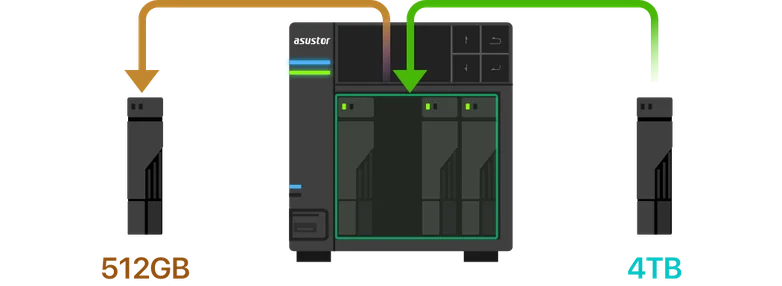
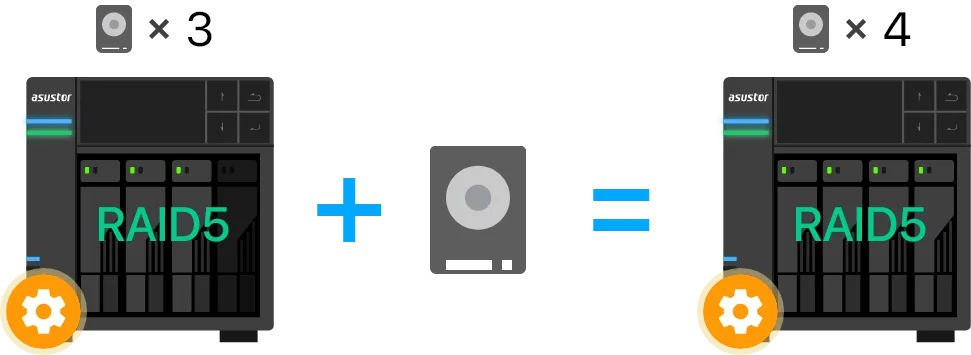
You can replace every drive with a larger one, one at a time, and ADM expands the volume with little or no downtime. This works on RAID 1, 5, 6 and 10. On RAID 5, 6 and 10 you can also add a new drive to an empty bay. ASUSTOR's rules: replace only one drive at a time and never while the NAS is synchronising, add drives at least as large as the smallest drive in the array, and power down first on models without hot-swap and for M.2 SSDs.
RAID scrubbing
RAID scrubbing checks the integrity and consistency of RAID 5 and RAID 6 data and fixes inconsistencies. If it finds a problem it cannot repair, ADM warns you early. Schedule it regularly, outside busy hours.
What happens when a drive fails
With a protected RAID level, a single drive failure normally does not lose data. ADM raises an alert; you replace the drive as soon as possible (most ASUSTOR models hot-swap hard drives, but the AS10, AS11, AS31, AS32, FS67 and FS68 series must be powered off first), and the rebuild starts automatically. ASUSTOR advises avoiding heavy use during the rebuild and monitoring progress in ADM. You do not need to format new drives yourself; ADM handles it.
If the NAS itself fails, ASUSTOR's system migration lets you move the drives into another ASUSTOR NAS and keep your data, although a backup first is strongly recommended.
Adding bays with an expansion unit
Most ASUSTOR NAS can add drives through ASUSTOR expansion units (the AS5004U and AS6004U). For example, ASUSTOR lists up to 12 drive bays in total for the Lockerstor 4 Gen2+ and 16 for the Lockerstor 4 Gen3. Expansion units support RAID and AES-256 encryption, but ASUSTOR notes that drives in an expansion unit cannot join the same RAID array as drives inside the NAS. Plan the main array around the bays in the NAS itself.
Genuine ASUSTOR NAS for every RAID level
Genuine ASUSTOR with the 3-year ASUSTOR warranty. Current pricing is on each product page.
Build it with ARC IP Networks
We supply genuine ASUSTOR NAS and matched NAS drives at competitive prices, and we will help you choose a RAID level that suits your data and budget.
- Matched, same-capacity drives, or a NAS and Seagate drive bundle
- RAID level, snapshot schedule and backup plan agreed before setup
- Spare drive recommendations so a failure is a quick swap
- PowerShield UPS to protect the array from power cuts
- Trade and project pricing for installers and IT providers
Common questions
Straight answers from the ARC IP Networks team. Last reviewed October 2026.
For most homes and small offices, RAID 5 gives the most usable space while surviving one drive failure. Choose RAID 6 for two-drive protection with large drives or business data, or RAID 10 for speed with protection for virtual machines and databases.
RAID 1. It mirrors the two drives, so one can fail without losing data, and usable capacity equals one drive. RAID 0 doubles capacity but loses everything if either drive fails.
ASUSTOR lists a minimum of three drives for RAID 5 and four for RAID 6. RAID 1 needs two drives and RAID 10 needs at least four.
No. RAID keeps the NAS running through a drive failure, but ASUSTOR notes data can still be lost if several drives fail or other hardware faults occur. Keep a separate backup, such as a USB drive, MyArchive drive, cloud copy or second NAS.
ASUSTOR says mixed drive sizes and ages can slow an array, add risk during rebuilds and waste capacity. It recommends same-capacity drives and suggests MyArchive for older, smaller drives.
Yes. RAID migration moves a volume to a higher RAID level without deleting it, for example from RAID 1 to RAID 5 after adding a third drive, and the NAS stays usable during the migration.
On most ASUSTOR models, yes, because the drives are hot-swappable and ADM rebuilds automatically. ASUSTOR lists the AS10, AS11, AS31, AS32, FS67 and FS68 series as needing to be powered off first, and M.2 SSDs are never hot-swapped.
ARC IP Networks is a trusted ASUSTOR supplier in Australia, with genuine ASUSTOR NAS, NAS and Seagate drive bundles, the full manufacturer warranty, Australia-wide delivery and competitive prices. Call 1300 100 440 for trade and project pricing.
Need help choosing a RAID level?
Tell us your bays, drives and data. We will recommend a RAID level, drives and backup plan, with trade and project pricing.