Short version: you cannot plug a monitor into a UniFi Protect recorder. The UNVR, UNVR Pro, Dream Machine Pro, Dream Machine SE and Cloud Key Plus have no HDMI port at all. To get live camera feeds onto a television you need either a Ubiquiti UP-Viewport — a PoE-powered HDMI adapter that mounts behind the screen — or a computer running the UniFi Protect app.
The short answer
If you have come from traditional CCTV, you will expect to plug a monitor straight into the back of the recorder. Every analogue DVR and most conventional IP NVRs have a VGA or HDMI socket for exactly that, and it is how the great majority of camera systems get a live view onto a screen at a reception desk.
UniFi Protect does not work that way. Ubiquiti's recorders are headless — they have no video output whatsoever, and are managed entirely through the UniFi Protect web interface and mobile apps. There is no socket to plug a monitor into and no on-screen menu to configure.
Why you can’t just plug in a monitor
This catches out a lot of installers moving from Hikvision or Dahua to UniFi. It is worth being precise about which devices lack a video output, because the answer is all of them:
| Device | Role | Video output |
|---|---|---|
| UNVR | Protect recorder, 4-bay | None |
| UNVR Pro | Protect recorder, 7-bay | None (1.3" status touchscreen only) |
| Dream Machine Pro | Gateway + Protect host | None |
| Dream Machine SE | Gateway + Protect host | None |
| Cloud Key Plus | Protect host | None |
The 1.3-inch touchscreen on the UNVR Pro is a status and setup display for the appliance itself. It shows system health and network details — it is not a camera monitor and cannot be used as one.
This is a deliberate design decision rather than an oversight. Ubiquiti treats the recorder as a piece of infrastructure that lives in a rack and is never touched, and treats viewing as a separate function delivered over the network. It is a cleaner architecture, but it does mean the live-view screen has to be planned for.
The two ways that actually work
| UP-Viewport | Computer running Protect | |
|---|---|---|
| Power at the display | PoE only, 9.5W | Mains power + PC supply |
| Cabling to the screen | One Ethernet run | Power + network (or Wi-Fi) |
| Distance from the rack | Up to 100 m | Anywhere with power |
| Cameras on screen | Up to 16 in matrix view | Limited by the browser and hardware |
| Operating system | None | Windows, macOS or Linux |
| Ongoing maintenance | Firmware via Protect | OS patching, updates, reboots |
| Tamper resistance | No local interface at all | Full desktop exposed |
| Recovery after power cut | Automatic | Depends on BIOS and OS settings |
| Best for | Permanent unattended displays | Staffed desks needing playback |
The distinction that matters is unattended versus operated. If a human sits at the screen and needs to scrub back through footage, export clips and run searches, they need the full Protect interface and therefore a computer. If the screen simply needs to show live cameras forever without anyone touching it, a Viewport is the better tool and a fraction of the ongoing effort.
Option 1: the Ubiquiti UP-Viewport
The UP-Viewport is a small PoE-powered adapter that mounts behind a television and turns it into a dedicated UniFi Protect display. It has no operating system, no local menu and no user interface — everything is configured remotely from the UniFi Protect app.
| Specification | Value |
|---|---|
| Video output | (1) HDMI, up to 4K @ 30 FPS |
| Cameras displayed | Up to 16 (matrix view) |
| Network | (1) GbE RJ45 |
| Power | PoE (802.3af), 9.5W maximum |
| Dimensions | 157 x 52 x 37 mm |
| Weight | 230 g (252 g with TV mount) |
| Controls | (1) factory reset button |
| Management | UniFi Protect web app, iOS and Android |
Because it draws under 10W, the Viewport runs happily from any 802.3af PoE port. It does not need PoE+ and will not meaningfully affect the power budget on a UniFi switch.
Option 2: a computer running UniFi Protect
The alternative is a small PC — a mini PC, a NUC, or even a Raspberry Pi with a modern browser — connected to the display and logged into the UniFi Protect web interface in full-screen mode.
This is the right answer when the screen is genuinely operated: a security desk where staff review footage, export incidents for police, and search across cameras. The full Protect interface gives you playback, timeline scrubbing, smart detections and downloads, none of which a Viewport provides.
The trade-offs are real, though. You now own a computer that needs operating system updates, that may not come back up cleanly after a power failure, and that presents a full desktop to anyone who walks past. For a public-facing display in a foyer, that is a liability rather than a feature.
What you need to buy
For a single live-view screen on an existing UniFi Protect system:
| Item | Why | Notes |
|---|---|---|
| UP-Viewport | Drives the display | One per screen |
| Television or monitor | The display itself | Any HDMI input; commercial panels suit 24/7 use |
| HDMI cable | Viewport to screen | Short lead — the Viewport mounts right behind |
| Cat5e / Cat6 run | Data and power | Up to 100 m back to the switch |
| PoE switch port | Powers the Viewport | 802.3af is sufficient |
If you are still building the system rather than adding to one, you also need a recorder and cameras. Our UniFi Protect NVR comparison covers which recorder suits which site, the Protect camera range guide walks through the cameras, and the storage sizing guide explains how many drives you will need. The full UniFi NVR shopping list pulls the whole bill of materials together.
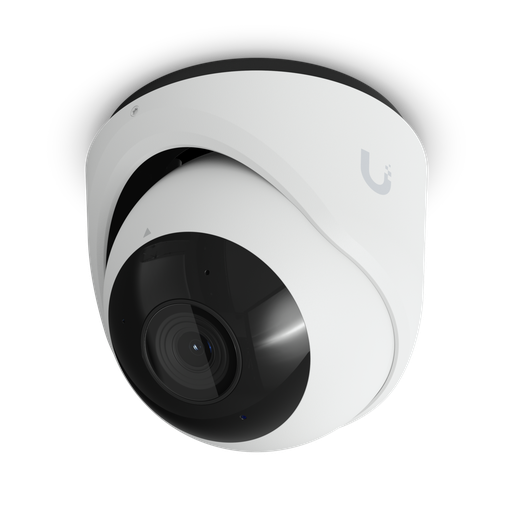
Shopping for UniFi Protect cameras?
Authorised Ubiquiti reseller: genuine Australian stock, full warranty, competitive prices and price match available.
Step-by-step setup
- Run the Ethernet. Pull a Cat5e or Cat6 cable from a PoE switch port to the display location. This one cable carries both the video data and the power.
- Mount the Viewport. Fit it behind the television using the supplied mount, or to the wall beside it. Keep the reset button accessible if the screen is wall-flush.
- Connect HDMI and Ethernet. Plug the HDMI lead into the television and the Ethernet into the Viewport. It powers up over PoE within a few seconds.
- Adopt it in UniFi Protect. Open UniFi Protect and the Viewport will appear as a new device awaiting adoption. Adopt it and allow the firmware update to finish.
- Choose the layout. In the Viewport's settings, pick the cameras it shows — a single full-screen camera, a matrix of up to 16, or an automatic cycle through a group.
- Configure the television. Disable the sleep timer, and set the TV to power on to the correct HDMI input after a power interruption. This step is skipped more often than any other and is the usual reason a screen is blank on Monday morning.
How many cameras on one screen
A single Viewport displays up to 16 camera streams in a matrix layout. In practice, fewer is better. On a 55-inch panel a 16-way grid gives each camera roughly a 13-inch tile, which is enough to see movement but not to identify a face.
| Layout | Works well for | Screen size |
|---|---|---|
| 1 camera | A single entry point or till | Any |
| 4 cameras | Reception, small retail | 43" and up |
| 9 cameras | Supervisor overview | 55" and up |
| 16 cameras | Whole-site situational awareness | 65" and up |
For a public-facing deterrent display, one or four cameras showing the entrance is far more effective than sixteen tiny tiles nobody can read.
Multiple screens and video walls
Each screen needs its own Viewport — one unit drives one display. The useful part is that each Viewport is configured independently, so a security desk can run three screens with completely different camera groups: perimeter on one, entrances on another, car park on the third.
There is no controller or licence involved. Add Viewports as you add screens, and each simply appears in UniFi Protect as another device to configure.
Common problems
The screen is black after a power cut
Almost always the television, not the Viewport. Most consumer TVs boot to their last input or to a smart-TV home screen rather than to HDMI. Find the setting that forces a specific input on power-up, or use a commercial display, which handles this properly.
The Viewport doesn’t appear for adoption
Check it is on the same network as the Protect console and that the switch port is delivering PoE. A port configured for a non-PoE VLAN, or with PoE disabled, is the usual culprit.
Feeds stutter or drop frames
Sixteen simultaneous streams is a real load on the network path between recorder and Viewport. Check the uplink to the switch the Viewport sits on, and reduce the number of tiles or the stream quality if the path is congested.
The image looks soft
Confirm the TV is running at its native resolution and not scaling. Also remember each tile in a 16-way grid is a fraction of the panel — that softness is the layout, not the camera.
What about non-UniFi systems?
To be clear about scope: the UP-Viewport is a UniFi Protect device and only displays UniFi Protect cameras. It will not show feeds from a Hikvision, Dahua or Jovision recorder.
If you are running one of those systems, you already have what you need — conventional NVRs almost all include HDMI or VGA outputs, and you can connect a monitor directly to the recorder. The absence of a video output is specific to UniFi Protect.
Ready to buy?
Shop genuine Ubiquiti at ARC IP Networks
Authorised Ubiquiti reseller
Ubiquiti at ARC IP Networks
UniFi gateways, switches, Wi-Fi, Protect cameras and Access. Genuine Australian stock with the full manufacturer's warranty, competitive prices and price match available.
Frequently asked questions
No. Neither the UNVR nor the UNVR Pro has an HDMI port. UniFi Protect recorders are headless — they are managed entirely through the UniFi Protect web and mobile apps, so there is no video output to connect a monitor to.
No. The Dream Machine Pro, Dream Machine SE and Cloud Key Plus have no video output either. No device in the UniFi Protect range provides HDMI, which is exactly why the UP-Viewport exists.
Either connect a UP-Viewport to the television's HDMI input and power it over Ethernet from a PoE switch, or run the UniFi Protect web app on a small computer connected to the TV. The Viewport is the purpose-built option and needs no operating system or licence.
Up to 16 camera streams in a matrix view. You can also display a single camera full screen, or cycle automatically through a group of cameras.
HDMI output up to 4K at 30 frames per second.
No. It is powered entirely over Ethernet using PoE and draws a maximum of 9.5W, so the only other cable at the display is the HDMI lead.
Yes. Ubiquiti renamed the product from UFP-ViewPort to UP-Viewport. It is identical hardware with the same UPC, 817882029575. Many Australian distributors still list it under the older UFP-VIEWPORT code.
No. It is a display endpoint only. All recording, retention and playback stay on your UniFi Protect recorder such as a UNVR or UNVR Pro.
No. Each display needs its own Viewport, but each one can show a completely different set of cameras, which is how multi-screen security desks are built.
No. The Viewport has no local menu or on-screen interface. Its only physical control is a recessed factory-reset button, so a public-facing display cannot be tampered with.
No. UniFi Protect has no recurring licence fees. Once you own the recorder, cameras and Viewport, there is nothing further to pay.
Up to 100 metres over a single Cat5e or Cat6 run, the standard Ethernet limit. That is the main advantage over a device that needs mains power and a short HDMI cable.

Who we are
About ARC IP Networks
ARC IP Networks is an Australian supplier of networking, Wi-Fi and gateway equipment, based in Blackburn, Melbourne, Victoria. We work with homeowners, installers, integrators and businesses across Australia, supplying Ubiquiti UniFi, MikroTik, TP-Link, Ruijie, Teltonika and D-Link.
We are an authorised Ubiquiti, MikroTik, TP-Link, Ruijie, Teltonika and D-Link reseller, so you get genuine Australian stock with the full manufacturer's warranty, never grey imports, at competitive prices. Our team can help you choose the right equipment, and trade customers get trade accounts and project pricing on larger jobs.
- Genuine Australian stock with the full manufacturer's warranty
- Competitive prices, price match available
- Trade accounts for installers, integrators and MSPs
- Australia-wide delivery; showroom in Blackburn, Mon–Fri 9–5 (demos by appointment)
Need help choosing?
Tell the ARC IP Networks team what you are trying to achieve and we will recommend the right equipment and quote it as one order.