A Hikvision camera showing no image or a black screen is almost always a power, cabling, or settings issue rather than a faulty camera. Work through it in order: check the PoE cable and port, confirm the camera is activated with an IP (SADP), then check night/IR and NVR settings. ARC IP Networks is an authorised Hikvision reseller in Australia and can help.
Need new or replacement Hikvision gear? ARC IP Networks supplies genuine Hikvision cameras and NVRs at competitive prices, with the full Australian manufacturer's warranty, Australia-wide delivery and trade pricing.
Step 1: Check the cabling and PoE power
The single most common reason a Hikvision camera shows no image or a black screen is a power or cabling fault. A PoE camera needs both data and power delivered over the one Ethernet cable, so a marginal cable, loose plug or an overloaded switch port will drop the feed entirely.
- Confirm the camera's status LED (if fitted) is on. No light usually means no power reaching the camera.
- Check the RJ45 plugs at both ends are fully seated and clicked home — at the camera and at the switch, injector or NVR PoE port.
- If you are using a PoE switch or injector, make sure it actually supplies PoE on that port and has enough power budget. Higher-resolution cameras with IR draw more, so an under-rated injector can cause dropouts. See our guide to PoE standards for CCTV.
- Inspect the cable run for kinks, crushed sections, water ingress at outdoor joins, or damage where it enters a wall or eave.
Quick diagnosis — match your symptom to the most likely fix:
| Symptom | Most likely cause | First thing to try |
|---|---|---|
| No image at all, no LED | No power / dead cable or port | Re-seat cable, try another PoE port |
| Camera online but black frame | Activation, stream or IP conflict | Check SADP / re-activate |
| Black only at night | IR, day/night mode or lens issue | Check night settings, wipe lens |
| No image on NVR only | Channel not added or HDMI resolution | Re-add channel, change HDMI output |
| Was fine, now intermittent | Cable, connector or firmware | Replace cable, update firmware |
Step 2: Confirm the camera is activated and has an IP (SADP)
A brand-new Hikvision camera ships inactive and will not stream video until you set a password to activate it. A camera can also go dark if its IP address clashes with another device on the network. Both are easy to check with the free Hikvision SADP tool.
- Download and run SADP on a computer on the same network. It scans for Hikvision devices and lists their status, IP address and firmware.
- If the device shows as Inactive, activate it by setting a strong password. Video will not appear until this is done.
- If two devices share the same IP, assign the camera a unique address in the correct range so it can communicate.
- If the camera does not appear in SADP at all, that points back to a power or cabling fault (return to Step 1) or a network/VLAN separation issue.
Our full walkthrough covers this in detail: using the Hikvision SADP tool to find a camera's IP. If you have simply forgotten the password, see resetting a Hikvision password.
Step 3: Test another PoE port and a known-good cable
Once you have ruled out activation, the fastest way to isolate a hardware fault is to swap parts one at a time. This tells you whether the problem is the camera, the cable, or the port.
- Try a different PoE port on the switch or NVR. If the camera comes to life, the original port or its power budget is the issue.
- Swap in a known-good cable. Run a short replacement cable temporarily from the camera to the switch. If the image returns, the original cable or a connector is faulty and should be replaced or re-terminated.
- Bench-test the camera next to the switch with a short patch lead. A camera that works on the bench but not in place confirms the fault is in the fixed cabling, not the camera.
- For long runs, remember standard Ethernet PoE is rated to roughly 100 metres. Runs beyond that can cause power drop-out and a black feed.
Working through it this way avoids replacing a perfectly good camera. If you are planning or re-running cable yourself, our DIY Hikvision installation guide covers cabling best practice.
Step 4: If it's only black at night, check IR and night settings
If you get a clear picture during the day but a black or near-black screen after dark, the camera and cabling are fine — the issue is night vision. Work through the low-light causes:
- Infrared (IR) not engaging: most Hikvision cameras switch to IR automatically in low light. Check the day/night setting is on Auto rather than forced to Day mode.
- IR reflection: shooting through glass, or a spider web, dust or rain on the lens, bounces IR straight back and washes the image to white or black. Clean the lens cover and avoid pointing through windows.
- ColorVu cameras rely on a supplementary white light and a light-gathering lens to stay in colour at night. If a ColorVu camera goes dark, confirm its light setting hasn't been disabled. Learn more about Hikvision ColorVu cameras.
- Exposure/shutter settings: heavily adjusted image settings can crush a night scene to black. Restoring image defaults often brings it back.
For background on the different night-vision technologies, see Smart IR explained.
Step 5: Check the NVR channel and HDMI resolution
Sometimes the camera is streaming perfectly but you see a black tile on the recorder, or nothing at all on the monitor. That points to the NVR configuration or its display output rather than the camera.
- Channel not added: on the NVR, check the camera is added to a channel and shows Online. Re-add it or run the Plug-and-Play/one-touch add if the channel is blank.
- IP range mismatch: cameras on the NVR's built-in PoE ports must sit in the NVR's internal IP range. A mismatch shows a black channel even though the camera has power.
- Blank monitor / no display: if the whole screen is black, the HDMI output resolution may be set higher than your monitor supports. Try a different monitor, or reset the output resolution (many Hikvision NVRs let you force a lower resolution such as 1080p on boot).
- Confirm the HDMI or VGA lead is firmly connected and the monitor is on the correct input.
Choosing or upgrading a recorder? Our NVR channels and storage guide and the Hikvision NVR range can help.
Step 6: Update the firmware
If the camera powers up, activates and appears online but the image is still black, unstable or intermittent, outdated firmware can be the cause. A firmware update resolves known streaming and compatibility bugs and keeps the camera working smoothly with your NVR.
- Check the current firmware version in SADP or the device's web interface.
- Update to the latest official Hikvision firmware for your exact model — never use firmware from a different model.
- Update the NVR firmware as well, so recorder and camera stay compatible.
Follow our step-by-step guide to updating Hikvision firmware so you use the correct file and don't interrupt the process.
Step 7: Factory reset as a last resort
If you have worked through power, cabling, activation, night settings, the NVR and firmware and the screen is still black, a factory reset returns the camera to its default settings and clears any misconfiguration. Treat this as a last resort because it wipes your custom settings.
- Note down your network and image settings first so you can reconfigure quickly.
- Reset using the camera's reset button (held while powering on) or the reset option in the web interface, per your model's instructions.
- After the reset, the camera returns to Inactive — re-activate it with SADP (back to Step 2) and re-add it to the NVR.
If the camera still shows no image after a reset, it may be a genuine hardware fault. As an authorised Hikvision reseller, ARC IP Networks can help with warranty support on genuine Australian stock — talk to our team.
Genuine Hikvision cameras and recorders
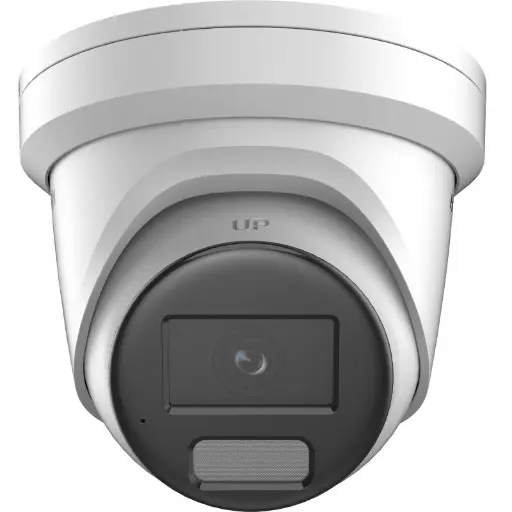
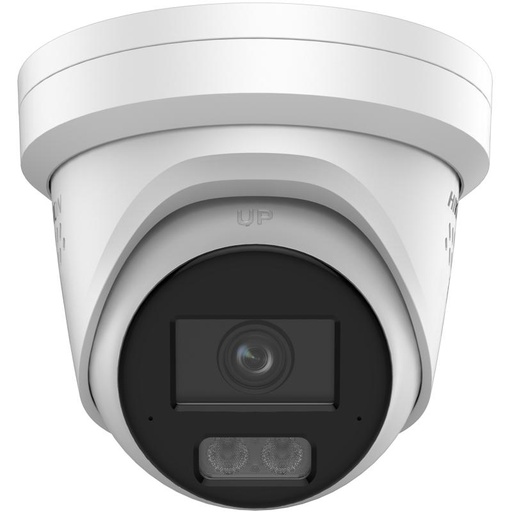
Hikvision DS-2CD2366G2H 6MP 2.8mm Turret IP Camera w/ Mic
6MP AcuSense turret with a built-in mic and PoE, ideal as a reliable, easy-to-power replacement if a bench test confirms a faulty camera.
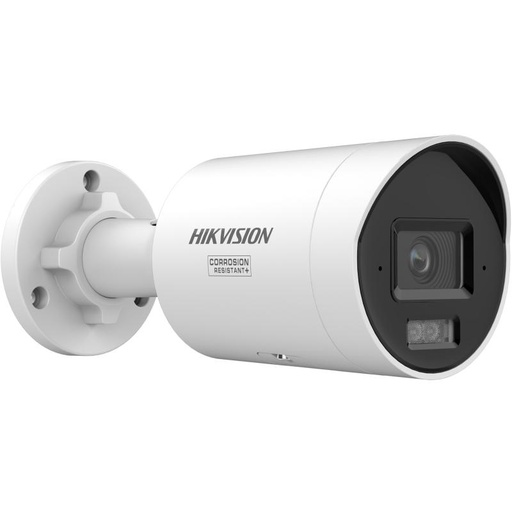
Hikvision DS-2CD2067G3 6MP 2.8mm ColorVu Bullet Camera
6MP ColorVu bullet that stays in full colour at night with supplementary white light — a strong choice where night-time black-screen issues have been a problem.
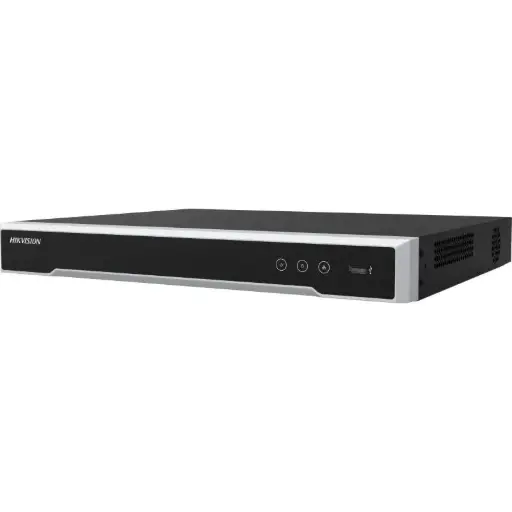
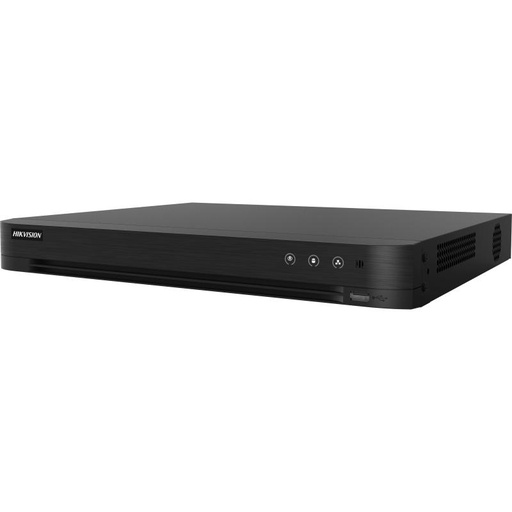
Hikvision DS-7608NI-M2/8P 8-Ch PoE 8K NVR
8-channel PoE NVR that powers and records up to eight cameras over a single cable each, with straightforward plug-and-play channel setup.
Ready to buy?
Shop genuine Hikvision at ARC IP Networks
Authorised Hikvision reseller
Hikvision at ARC IP Networks
AcuSense, ColorVu and DeepinView cameras, NVRs and complete systems. Genuine Australian stock with the full manufacturer's warranty, competitive prices and price match available.
Frequently asked questions
Last updated: 2026-07-14 · Written by the ARC IP Networks team, an authorised Hikvision reseller in Australia.
Who we are
About ARC IP Networks
ARC IP Networks is an Australian supplier of security cameras and CCTV systems, based in Blackburn, Melbourne, Victoria. We work with homeowners, installers, integrators and businesses across Australia, supplying Hikvision, Ubiquiti UniFi Protect, Dahua and Jovision CCTV.
We are an authorised reseller for every brand we sell, and the national distributor of Jovision in Australia, so you get genuine Australian stock with the full manufacturer's warranty, never grey imports, at competitive prices. Our team can help you choose the right equipment, and trade customers get trade accounts and project pricing on larger jobs.
- Genuine Australian stock with the full manufacturer's warranty
- Competitive prices, price match available
- Trade accounts for installers, integrators and MSPs
- Australia-wide delivery; showroom in Blackburn, Mon–Fri 9–5 (demos by appointment)
Need help choosing?
Tell the ARC IP Networks team what you are trying to achieve and we will recommend the right equipment and quote it as one order.