To play back and export Hikvision footage, open Playback on your NVR (or in iVMS-4200 / Hik-Connect), choose the camera and date, scrub the timeline or filter by motion / AcuSense event, mark the clip start and end, then export it to a USB drive. ARC IP Networks is an authorised Hikvision reseller in Australia and can help you set it up.
Need new or replacement Hikvision gear? ARC IP Networks supplies genuine Hikvision cameras and NVRs at competitive prices, with the full Australian manufacturer's warranty, Australia-wide delivery and trade pricing.
Step 1: Open Playback on your Hikvision system
There are three common ways to review recorded Hikvision footage. Right-click on the NVR's connected monitor and choose Playback, open the Playback tab in the free desktop app iVMS-4200, or use Hik-Connect on your phone for remote playback. Any of these lets you search recordings, view them and export a clip — the NVR menu and iVMS-4200 give you the most control over exports.
| Method | Best for | Export to |
|---|---|---|
| NVR menu (on-site monitor) | Full control, largest clips | USB drive |
| iVMS-4200 (PC app) | Reviewing from your computer | Your PC / network |
| Hik-Connect (mobile) | Quick remote checks | Phone (short clips) |
If you have not set up remote access yet, our Hik-Connect setup guide walks you through it. Log in with your own administrator account before you start.
Step 2: Choose the camera and date
In Playback, tick the camera (channel) you want to review from the list, then pick the day from the calendar. Days that contain recordings are highlighted, so you can quickly see which dates have footage. You can select several cameras at once to compare angles side by side, which is handy for following someone across a property.
- Pick one camera for a clean, focused review.
- Select the correct date — times shown are your recorder's local clock, so make sure it is set to your Australian time zone.
- Note the approximate time an event happened to save scrolling.
Recording length depends on your drive size and settings — see our NVR channels & storage guide to work out how many days you keep.
Step 3: Scrub the timeline and filter by motion or AcuSense event
The timeline at the bottom of the screen represents the whole day. Drag it left or right to scrub to the moment you want, and use the zoom control to spread the timeline out for finer, second-by-second accuracy. Colour-coded bars show where continuous and event recordings sit.
Rather than watching hours of footage, use event search (sometimes shown as Smart or Event playback) to jump straight to the moments that matter. You can filter by motion, or on AcuSense-capable cameras filter by human or vehicle events, which cuts out wind, rain and passing shadows. This is the fastest way to find the clip you need.
Step 4: Mark the start and end of the clip
Once you have found the incident, set the boundaries of your export. Play up to just before the event, then use the clip or scissors tool to mark the start point, let it play through, and mark the end point after the event finishes. Alternatively, many Hikvision menus let you type an exact start and end time.
- Add a buffer — start 30–60 seconds before and after the event.
- Keep the clip focused; huge exports take longer and fill USB drives.
- Double-check the marked section covers the full incident before exporting.
Step 5: Export the footage to a USB drive
Plug a USB flash drive (or portable hard drive) into the NVR, then choose Export. Select your marked clip, pick the USB device as the destination and start the transfer. Larger recorders let you export a whole time range across multiple cameras in one go.
- Use a drive with enough free space — video files can be large.
- Wait for the export to reach 100% before removing the drive.
- Many systems also save a small player and a log file alongside the video — keep these together.
In iVMS-4200 the same steps export to a folder on your PC instead of a USB drive, which is ideal if the recorder is hard to reach.
Step 6: Play the exported file
Hikvision clips may export as standard MP4 files that open in most media players, or in a proprietary format that needs the bundled Hikvision player (often copied to the USB drive during export, or available as the free VSPlayer for Windows). If a file will not open in your usual player, use the bundled player — it also shows the correct date and time overlay.
- Copy the whole export folder, not just the video, so the player travels with it.
- The player lets you pause, step frame by frame and take snapshots.
- Keep an untouched master copy and only ever share duplicates.
Giving CCTV footage to police
If you need to hand footage to Victoria Police or another Australian force, export the original clip without editing it, and note the camera, date and time. Provide it on a clean USB drive along with the bundled player so officers can view it exactly as recorded. A short written note of what happens in the clip and the times involved helps investigators act quickly.
- Keep the original file — never crop, re-encode or add text over evidence.
- Include the player and any log file the export created.
- Record the recorder's time and whether it matches real time.
Setting up a new system from scratch? Our DIY Hikvision install guide covers positioning cameras so footage is clear enough to be useful.
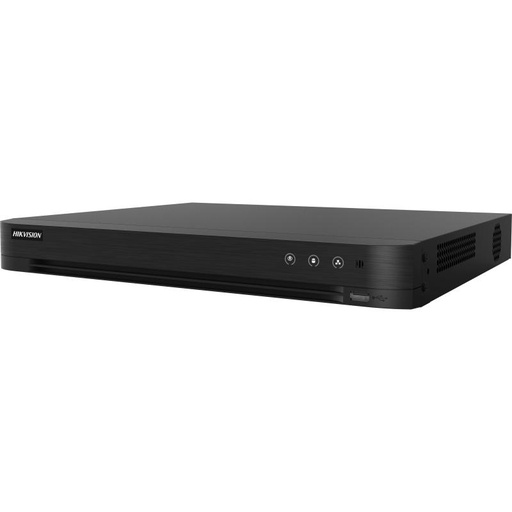
Gear that makes playback and export easy
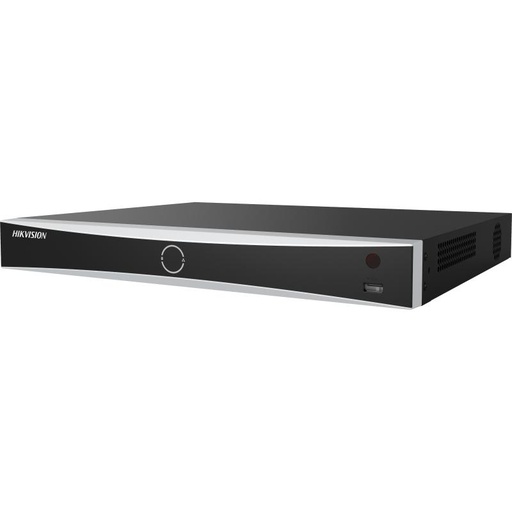
Hikvision DS-7608NXI-I2/8P/VPro 8-Ch AcuSense NVR
8-channel AcuSense NVR with built-in PoE. Human and vehicle event filtering makes finding and exporting the right clip fast, and it exports straight to USB.
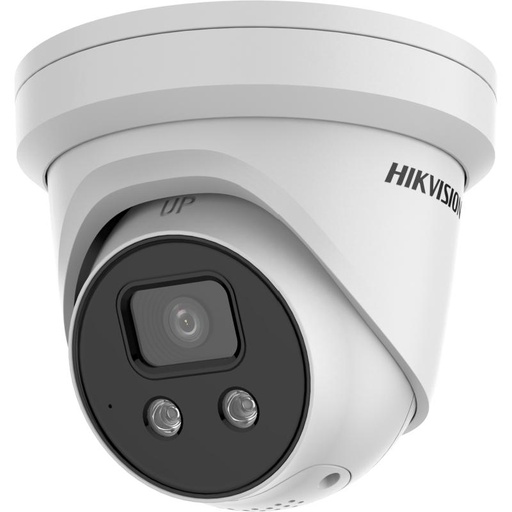
Hikvision DS-2CD2386G2H 8MP AcuSense Strobe Light and Audible Warning Fixed Turret Network Camera IP67 4mm
8MP AcuSense turret camera. On-device human and vehicle detection tags events on the timeline, so playback and export jump straight to what matters.
Ready to buy?
Shop genuine Hikvision at ARC IP Networks
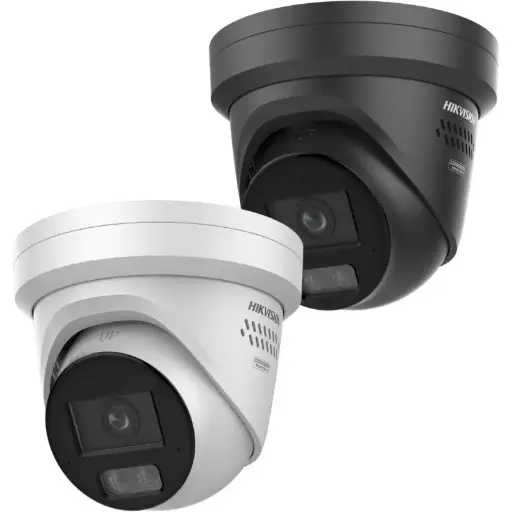
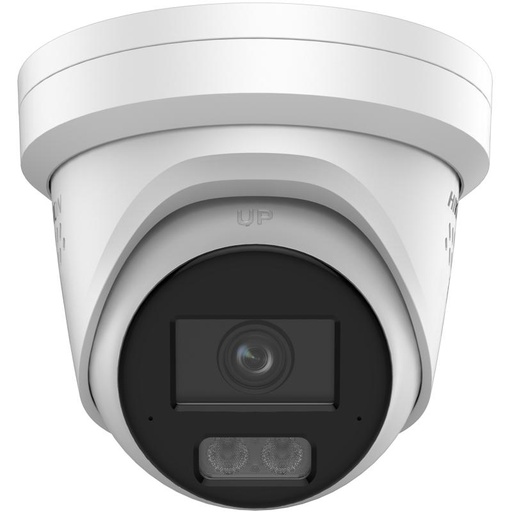
Authorised Hikvision reseller
Hikvision at ARC IP Networks
AcuSense, ColorVu and DeepinView cameras, NVRs and complete systems. Genuine Australian stock with the full manufacturer's warranty, competitive prices and price match available.
Frequently asked questions
Last updated: 2026-07-14 · Written by the ARC IP Networks team, an authorised Hikvision reseller in Australia.
Who we are
About ARC IP Networks
ARC IP Networks is an Australian supplier of security cameras and CCTV systems, based in Blackburn, Melbourne, Victoria. We work with homeowners, installers, integrators and businesses across Australia, supplying Hikvision, Ubiquiti UniFi Protect, Dahua and Jovision CCTV.
We are an authorised reseller for every brand we sell, and the national distributor of Jovision in Australia, so you get genuine Australian stock with the full manufacturer's warranty, never grey imports, at competitive prices. Our team can help you choose the right equipment, and trade customers get trade accounts and project pricing on larger jobs.
- Genuine Australian stock with the full manufacturer's warranty
- Competitive prices, price match available
- Trade accounts for installers, integrators and MSPs
- Australia-wide delivery; showroom in Blackburn, Mon–Fri 9–5 (demos by appointment)
Need help choosing?
Tell the ARC IP Networks team what you are trying to achieve and we will recommend the right equipment and quote it as one order.