To view Hikvision cameras on a PC, download the free iVMS-4200 client for Windows or Mac, create a local login on first run, then add your NVR or cameras by IP address or by Hik-Connect serial number. You can then watch live view, replay recordings and export clips. ARC IP Networks is an authorised Hikvision reseller in Australia.
Need new or replacement Hikvision gear? ARC IP Networks supplies genuine Hikvision cameras and NVRs at competitive prices, with the full Australian manufacturer's warranty, Australia-wide delivery and trade pricing.
How do I download and install iVMS-4200?
iVMS-4200 is Hikvision's free desktop client for managing cameras and recorders on a computer. It runs on Windows and Mac, so you can monitor your system from a full-size screen instead of a phone.
- Download the latest iVMS-4200 installer from Hikvision's official support/downloads site for your operating system.
- Run the installer and follow the prompts, accepting the default install location unless you have a reason to change it.
- Launch iVMS-4200 once installation finishes.
Tip: before you start, make sure your PC is on the same local network as your NVR or cameras if you plan to add them by IP address. Not sure of the camera's IP? Our guide to the Hikvision SADP tool shows how to find it in seconds.
Create a login and open iVMS-4200
The first time you open iVMS-4200 it asks you to create a local login for the software itself. This is separate from your camera or NVR password and keeps your setup private on a shared computer.
- Set a strong username and password when prompted, and store them somewhere safe.
- Log in to reach the main dashboard.
- If you ever forget this login, you may need to reset it and re-add your devices, so record it carefully.
This software login controls access to iVMS-4200; it does not change the password on your NVR or cameras. Managing the device password is a separate task covered in our Hikvision password guide.
How to add your NVR or cameras (IP or serial)
With iVMS-4200 open, go to the Device Management area to connect your equipment. There are two common ways to add a Hikvision NVR or camera:
| Method | When to use it | What you need |
|---|---|---|
| By IP address | PC is on the same local network as the device (home or office LAN) | The device IP address, plus its admin username and password |
| By serial (Hik-Connect) | Viewing over the internet, or the device is on a different network | A Hik-Connect account, the device serial number and its verification code |
On a local network, iVMS-4200 can often list devices it detects automatically — select yours and enter the admin login to add it. For a single recorder, adding the NVR alone brings in every connected camera, so you usually don't add each camera separately. For remote viewing from anywhere, the serial-number method links your device to your Hik-Connect account — see our full Hik-Connect remote viewing setup.
Live view and camera layouts
Once a device is added, open the main live view page (labelled Main View) to watch your cameras in real time.
- Expand your device in the side list and drag a camera into a viewing pane, or double-click it to start the stream.
- Choose a window layout — single camera, 4, 9 or 16 panes — to suit how many cameras you have.
- Save your preferred arrangement as a view so it reopens the same way next time.
If a stream looks choppy, switch that camera to its sub-stream (lower resolution) for smoother multi-camera viewing, and keep the main stream for full-quality single-camera checks. A PoE NVR keeps all of this on one tidy network — see how many channels you need in our NVR channels and storage guide.
Playback and exporting footage
To review recorded footage, open the Remote Playback page. This pulls recordings from the hard drive inside your NVR or camera.
- Select the camera and the date you want to review.
- Use the timeline to scrub to the moment you need — recorded periods are highlighted so gaps are easy to spot.
- To keep a copy, mark the start and end of the clip and export it to your PC, or export a single still image for a licence plate or face.
Exported files save to a folder on your computer that you can back up, email or hand to police. Because footage lives on the recorder, having enough storage matters — our storage guide explains how many days you'll keep.
iVMS-4200 vs the web browser and Hik-Connect
iVMS-4200 is the most capable way to run a Hikvision system on a computer, but it isn't the only option. Here's how the desktop client compares with the other two common methods:
| Option | Best for | Notes |
|---|---|---|
| iVMS-4200 (desktop) | Full control on a PC — many cameras, saved layouts, detailed playback and export | Free install for Windows and Mac |
| Web browser | A quick look at a single device on the local network | Log in to the device's own IP address in a browser; newer firmware supports plug-in-free live view |
| Hik-Connect (web & app) | Viewing from anywhere over the internet, including on a phone | Uses your device serial and a Hik-Connect account; a web portal and mobile apps are available |
You may also see the name Guarding Vision — this was an earlier name used for the same cloud viewing service in some regions, and modern systems generally use Hik-Connect. For phones and remote access, follow our Hik-Connect setup guide. If you're planning a fresh install, our DIY Hikvision CCTV guide walks through the whole job.
Popular Hikvision gear to view in iVMS-4200
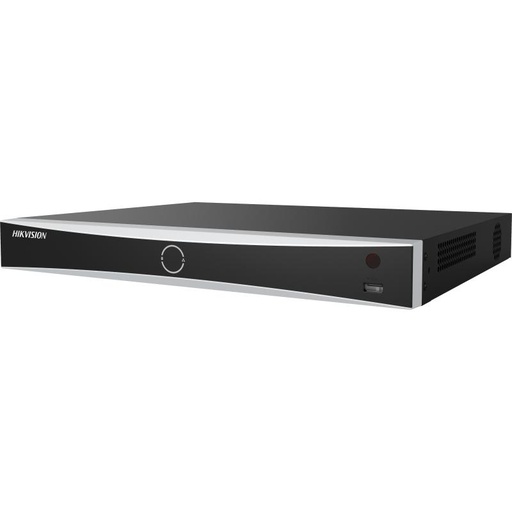
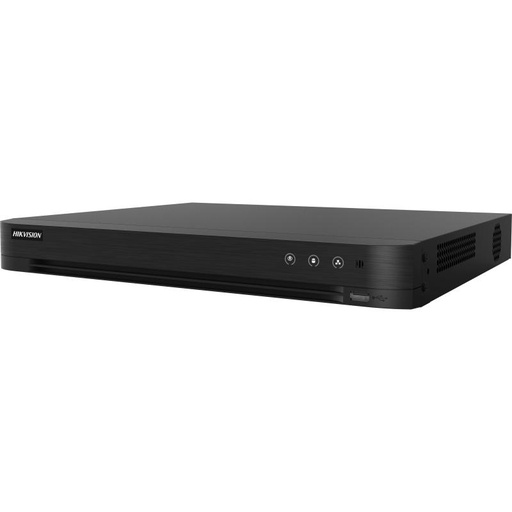
Hikvision DS-7608NXI-I2/8P/VPro 8-Ch AcuSense NVR
8-channel AcuSense PoE NVR - add it once in iVMS-4200 and every connected camera comes online together.
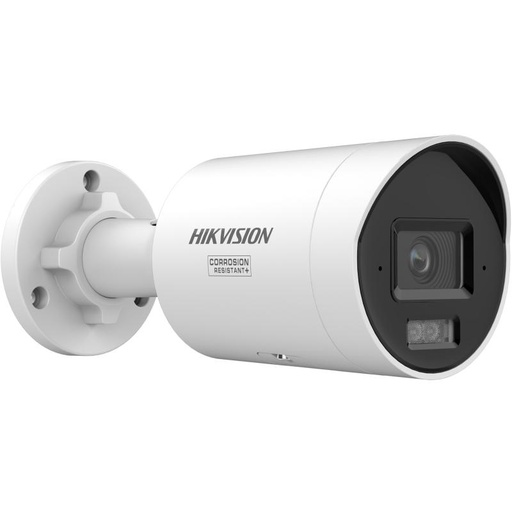
Hikvision DS-2CD2067G3 6MP 2.8mm ColorVu Bullet Camera
6MP ColorVu bullet with full-colour night vision - crisp live view and clear exported clips on your PC.
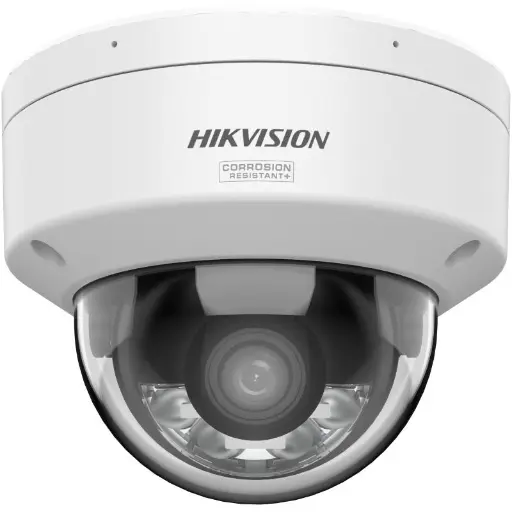
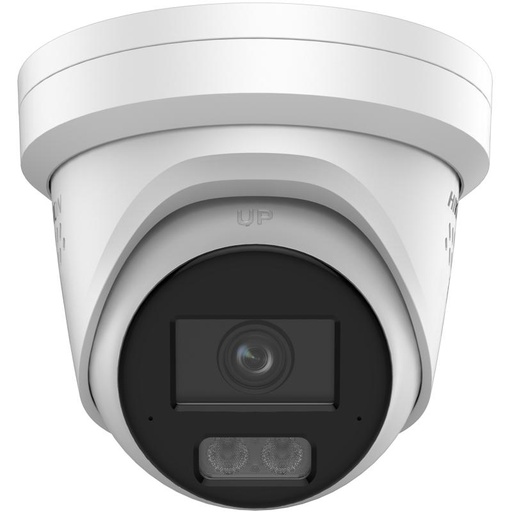
Hikvision DS-2CD2167G3 6MP 2.8mm ColorVu AcuSense Turret
6MP ColorVu AcuSense turret - people and vehicle smart detection, ideal for reviewing events in Remote Playback.
Related Hikvision guides
Ready to buy?
Shop genuine Hikvision at ARC IP Networks
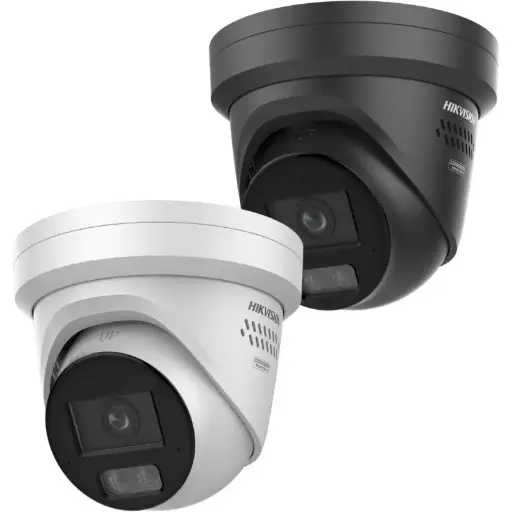
Authorised Hikvision reseller
Hikvision at ARC IP Networks
AcuSense, ColorVu and DeepinView cameras, NVRs and complete systems. Genuine Australian stock with the full manufacturer's warranty, competitive prices and price match available.
Frequently asked questions
Last updated: 2026-07-14 · Written by the ARC IP Networks team, an authorised Hikvision reseller in Australia.
Yes. iVMS-4200 is Hikvision's free client software for Windows and Mac. Download it from Hikvision's official support and downloads site.
Yes. Hikvision provides a Mac version of iVMS-4200 as well as a Windows version. Choose the installer that matches your operating system.
Open Device Management and add the recorder by its IP address if your PC is on the same network, or by its serial number through a Hik-Connect account for remote access. Adding the NVR brings in all its connected cameras.
No. If your cameras run through an NVR, you only add the NVR and every connected channel appears automatically. You add cameras individually only when they are standalone devices without a recorder.
Yes. Add the device by serial number using a Hik-Connect account, or use the Hik-Connect web portal. Our Hik-Connect setup guide covers remote viewing in detail.
iVMS-4200 is a full desktop client for managing a system on a PC, with saved layouts, detailed playback and export. Hik-Connect is the cloud service and app used mainly for viewing from anywhere, including on a phone.
Guarding Vision was an earlier name used for the same cloud viewing service in some regions. Modern Hikvision systems generally use Hik-Connect for remote access.
Yes, for a quick look you can log in to a device's own IP address in a web browser on the local network. Newer firmware supports plug-in-free live view. For many cameras, saved layouts and easy export, iVMS-4200 is the better tool.
Who we are
About ARC IP Networks
ARC IP Networks is an Australian supplier of security cameras and CCTV systems, based in Blackburn, Melbourne, Victoria. We work with homeowners, installers, integrators and businesses across Australia, supplying Hikvision, Ubiquiti UniFi Protect, Dahua and Jovision CCTV.
We are an authorised reseller for every brand we sell, and the national distributor of Jovision in Australia, so you get genuine Australian stock with the full manufacturer's warranty, never grey imports, at competitive prices. Our team can help you choose the right equipment, and trade customers get trade accounts and project pricing on larger jobs.
- Genuine Australian stock with the full manufacturer's warranty
- Competitive prices, price match available
- Trade accounts for installers, integrators and MSPs
- Australia-wide delivery; showroom in Blackburn, Mon–Fri 9–5 (demos by appointment)
Need help choosing?
Tell the ARC IP Networks team what you are trying to achieve and we will recommend the right equipment and quote it as one order.