To get Hikvision alerts, enable motion or AcuSense detection and draw a detection area, then either configure SMTP email (with snapshots attached) or turn on Hik-Connect push to your phone, set an arming schedule and linkage actions, and send a test. ARC IP Networks is an authorised Hikvision reseller in Australia.
Need new or replacement Hikvision gear? ARC IP Networks supplies genuine Hikvision cameras and NVRs at competitive prices, with the full Australian manufacturer's warranty, Australia-wide delivery and trade pricing.
How do I turn on motion or AcuSense detection?
Alerts only fire once the camera or NVR has an event to react to, so the first step is to enable detection. In the device's web interface or on the recorder's local menu, this is typically found under Configuration → Event → Basic Event → Motion Detection (basic pixel-change motion) or under the Smart Event section for AcuSense line crossing and intrusion detection.
- Tick Enable Motion Detection (or enable Line Crossing / Intrusion for AcuSense models).
- On AcuSense cameras and NVRs, set the target type to Human and Vehicle so the device ignores leaves, rain and shadows.
- Set a sensible sensitivity — start in the middle and fine-tune later.
New to events? Our Hikvision motion detection setup guide walks through the basics first.
How do I set the detection area?
A tight detection area is the single biggest factor in getting useful alerts instead of a flood of noise. On the same event screen, switch to the Area Settings (or Draw Area) tab.
- Click and drag to paint the zone you care about — a doorway, driveway or gate — and leave out the footpath, road and neighbouring properties.
- For AcuSense line crossing, draw the trip line across the path an intruder must take; for intrusion, draw a closed region.
- Keep swaying trees, flags and reflective surfaces outside the zone where possible.
Save before moving on. You can always come back and shrink the area if you get too many alerts.
How do I set up email alerts (including with Gmail)?
Email alerts are handy for a permanent record with images attached. The SMTP settings are typically under Configuration → Network → Advanced Settings → Email.
- Sender / SMTP server: enter your email provider's outgoing (SMTP) server and port — e.g.
smtp.gmail.comon port 465 (SSL) or 587 (STARTTLS). - Authentication: enable it and enter the sending account's username and password.
- Gmail note: Gmail blocks a plain account password, so switch on 2-Step Verification on the Google account and generate an app password — paste that 16-character app password into the device instead of your normal password.
- Receiver: add the address (or addresses) that should get the alert.
- Attach snapshots: tick Attached Image so a JPG of the trigger frame is included; you can set the interval and count.
Use the Test button on the email page to confirm the device can reach the server before you rely on it.
How do I get push notifications to my phone?
Push notifications via the free Hik-Connect app are the fastest way to know something happened. First enable the cloud service on the device — typically Configuration → Network → Advanced Settings → Platform Access — set the platform to Hik-Connect, tick enable and set a verification code.
- Install Hik-Connect on your phone, create an account and add the device by scanning its QR code or entering the serial number.
- In the app, open the device settings and turn on Notifications / Alarm push for the channels you want.
- Allow notifications for Hik-Connect in your phone's own settings so alerts appear on the lock screen.
For the full remote-viewing walkthrough, see our Hik-Connect setup guide.
How do I set the arming schedule and linkage actions?
Detection only triggers alerts while the event is armed, and linkage actions decide what actually happens. Both live on the event screen you used earlier.
- Arming Schedule: by default it's usually 24/7. Paint the days and hours you want alerts — for example overnight only for a business, or all day for a holiday home.
- Linkage Method: tick the actions to take on a trigger — Notify Surveillance Centre (needed for Hik-Connect push), Send Email, Trigger Recording, and on cameras with a strobe and speaker, the light/audio warning.
How do I test that alerts are working?
Always finish by confirming the whole chain end to end, in real conditions.
- Walk through the detection area during an armed period and watch for a Hik-Connect push on your phone.
- Check your inbox (and spam folder) for the email, and confirm the snapshot JPG is attached.
- Open the device's log or event search to verify the trigger was recorded.
If nothing arrives, re-check the arming schedule, the linkage actions, and — for email — that the SMTP Test still passes. Tune sensitivity and the detection area until you get reliable alerts without constant noise.
How do I stop getting false alerts?
The most common complaint with any camera system is too many pointless alerts. Hikvision's AcuSense models use on-board AI to classify people and vehicles, so you can choose to be alerted only for the targets that matter.
- Set the target type to Human and Vehicle so wind, rain, insects and passing headlights are filtered out.
- Tighten the detection area and trip lines to your own property.
- Use the arming schedule so you're not alerted during busy daytime hours if you don't need to be.
- Nudge sensitivity down a step at a time until alerts are trustworthy.
Want to understand the technology behind the filtering? Read Hikvision AcuSense explained.
AcuSense cameras & recorders for smarter alerts
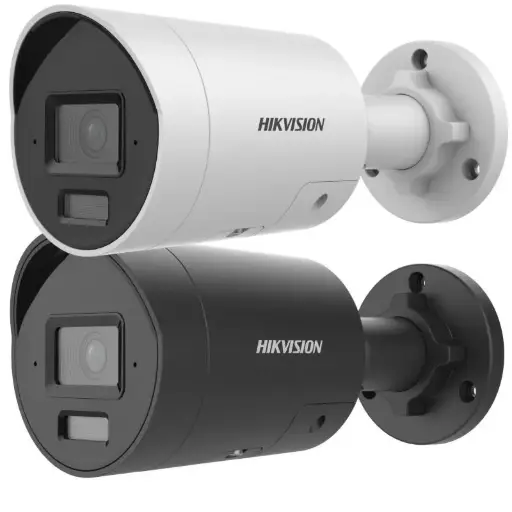
Hikvision DS-2CD2066G2H-I2U/SL 6MP 4mm AcuSense Strobe Light and Audible Warning Fixed Bullet Network Camera
6MP AcuSense bullet with human/vehicle detection plus strobe light and audible warning — ideal for active-deterrence linkage actions.
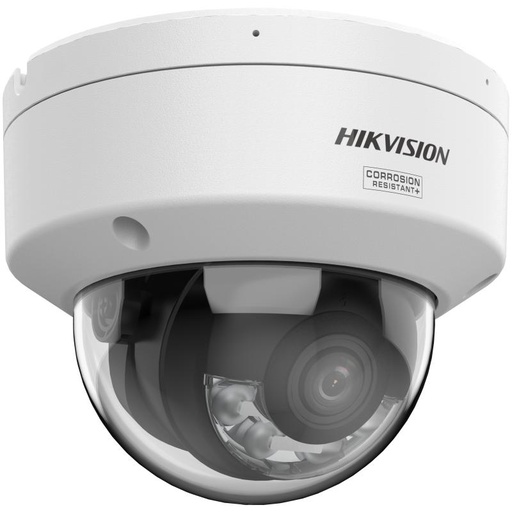
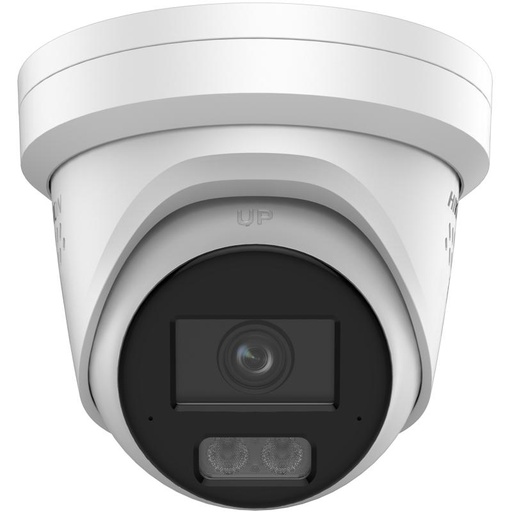
Hikvision DS-2CD2187G3 8MP 2.8mm ColorVu AcuSense Turret
8MP ColorVu AcuSense turret combining full-colour night vision with AI human/vehicle filtering for cleaner, more accurate alerts.
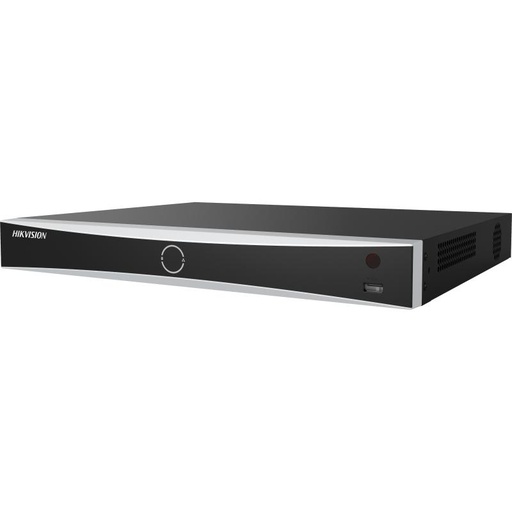
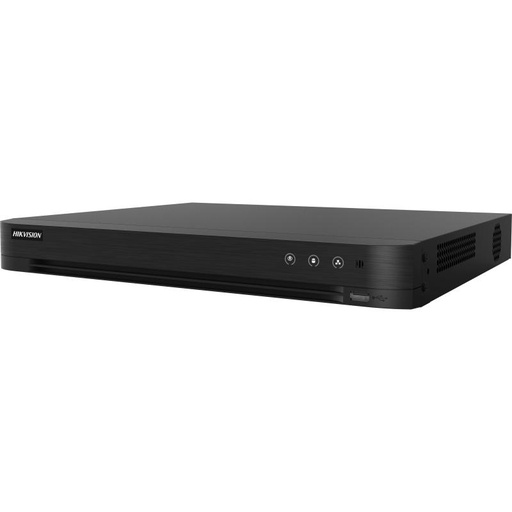
Hikvision DS-7608NXI-I2/8P/VPro 8-Ch AcuSense NVR
8-channel AcuSense PoE NVR that runs detection at the recorder and pushes alerts via Hik-Connect — a tidy base for an alert-driven system.
Ready to buy?
Shop genuine Hikvision at ARC IP Networks
Authorised Hikvision reseller
Hikvision at ARC IP Networks
AcuSense, ColorVu and DeepinView cameras, NVRs and complete systems. Genuine Australian stock with the full manufacturer's warranty, competitive prices and price match available.
Frequently asked questions
Last updated: 2026-07-14 · Written by the ARC IP Networks team, an authorised Hikvision reseller in Australia.
No, but they complement each other. Hik-Connect push is instant and best for real-time awareness, while email gives you a permanent record with a snapshot attached. Many people enable both.
Gmail no longer accepts a plain account password. On the Google account, switch on 2-Step Verification, generate a 16-character app password, and enter that app password in the device's SMTP settings instead of your normal password.
Use smtp.gmail.com with SSL on port 465, or STARTTLS on port 587, with authentication enabled. Always use the Test button to confirm the connection before relying on it.
Almost always the Send Email linkage action isn't ticked on the event, or the trigger is happening outside the arming schedule. Enable Send Email as a linkage method and check the schedule covers the time.
In the Email settings, tick Attached Image. The device then includes a snapshot JPG of the trigger frame; you can adjust the capture interval and number of images.
Use an AcuSense model set to Human and Vehicle target type, tighten the detection area, apply an arming schedule, and lower sensitivity a step at a time. See our AcuSense guide.
The Hik-Connect app and its push notifications are free to use. You only need an internet connection at the device and on your phone.
Yes. The steps are menu-driven, and our team can help you choose the right AcuSense camera or NVR and point you to the settings. Talk to ARC IP Networks, an authorised Hikvision reseller in Australia.
Who we are
About ARC IP Networks
ARC IP Networks is an Australian supplier of security cameras and CCTV systems, based in Blackburn, Melbourne, Victoria. We work with homeowners, installers, integrators and businesses across Australia, supplying Hikvision, Ubiquiti UniFi Protect, Dahua and Jovision CCTV.
We are an authorised reseller for every brand we sell, and the national distributor of Jovision in Australia, so you get genuine Australian stock with the full manufacturer's warranty, never grey imports, at competitive prices. Our team can help you choose the right equipment, and trade customers get trade accounts and project pricing on larger jobs.
- Genuine Australian stock with the full manufacturer's warranty
- Competitive prices, price match available
- Trade accounts for installers, integrators and MSPs
- Australia-wide delivery; showroom in Blackburn, Mon–Fri 9–5 (demos by appointment)
Need help choosing?
Tell the ARC IP Networks team what you are trying to achieve and we will recommend the right equipment and quote it as one order.