The simplest way to view Hikvision cameras on a TV is to plug the NVR straight into the TV with an HDMI cable and use the TV as a dedicated monitor. Set the NVR's HDMI output resolution to match the TV, then pick a multi-camera split layout. ARC IP Networks supplies genuine Hikvision gear in Australia.
Need new or replacement Hikvision gear? ARC IP Networks supplies genuine Hikvision cameras and NVRs at competitive prices, with the full Australian manufacturer's warranty, Australia-wide delivery and trade pricing.
Can you view Hikvision cameras directly on a TV?
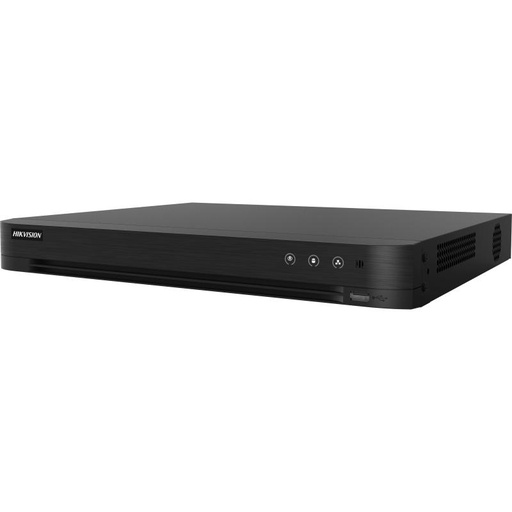
Yes. A Hikvision network video recorder (NVR) has a built-in HDMI output that sends live camera footage straight to any screen with an HDMI port — including a standard television. You don't need a computer, a subscription or a separate media box: the NVR draws the live grid, records to its hard drive and plays back, all on its own. The TV simply becomes a dedicated monitor for your cameras.
This is the most reliable way to keep an always-on wall of cameras in a shop, reception, garage or home office. If your cameras are Power-over-Ethernet models running back to a Hikvision PoE NVR, a single HDMI lead to the TV completes the picture. For remote viewing on a phone instead, see our Hik-Connect setup guide.
Step 1: Connect the NVR's HDMI output to your TV
Locate the HDMI port on the rear of your Hikvision NVR and run a standard HDMI cable from it to a free HDMI input on the TV. Note the TV input number you used (for example HDMI 2). Plug in the supplied USB mouse so you can drive the NVR's on-screen menus, and make sure the network cameras are connected to the recorder's PoE ports.
- Use a good-quality HDMI cable rated for the run length — long, thin cables can drop the signal.
- If your TV only has VGA, most Hikvision NVRs also carry a VGA output you can use instead.
- Keep the NVR well ventilated; it is designed to run 24/7 behind or beside the TV.
Step 2: Power on and set the HDMI output resolution
Switch on the NVR, then use the TV remote to select the HDMI input you plugged into. The Hikvision live view should appear. If the picture is oversized, cropped or blank, set the NVR's output resolution to match your TV:
- Right-click for the menu, then open Menu → Configuration → General (wording varies slightly by model and firmware).
- Choose a Resolution the TV supports — typically 1920×1080 (1080p) for most TVs, or 3840×2160 (4K) where the TV and NVR both support it. Newer 8K-capable Hikvision NVRs can output higher still.
- Save and let the display re-sync. Start at 1080p if unsure, then step up.
Matching the resolution to the panel gives the sharpest, correctly-scaled image and avoids overscan.
Step 3: Choose a multi-camera layout on the NVR
The NVR decides how many cameras appear on screen at once — not the TV. From live view, use the on-screen layout icons or right-click menu to pick a split:
- Single (1×1) — one camera full-screen; double-click any tile to zoom to it.
- Quad (2×2) — four cameras, ideal for a small home or shopfront.
- 3×3 or 4×4 — nine or sixteen cameras for larger sites (up to your NVR's channel count).
You can drag cameras between tiles and save the arrangement, and many models offer auto-sequence to cycle through cameras on a timer. Choosing the right channel count up front matters — our NVR channels & storage guide helps you size it correctly.
Step 4 (optional): Add a second display
Many Hikvision NVRs provide both an HDMI and a VGA output, and some higher-end models offer a second HDMI. Where a model supports simultaneous outputs, you can drive two screens — for example a main TV showing a 16-way grid and a second monitor spot-monitoring the front door.
- Check your specific model's datasheet for dual-output support before buying a second screen — not every NVR mirrors or extends to two displays.
- On models that support it, the second output can be configured independently (its own layout or auto-sequence) in the NVR's display settings.
If your model has a single output, an HDMI splitter can mirror the same picture to two TVs at once.
Step 5 (optional): View via Hik-Connect on a smart TV, where supported
Hik-Connect is Hikvision's remote-viewing app for phones, tablets and desktop. A native smart-TV or streaming-stick app is not guaranteed and availability varies by platform, so we suggest these dependable approaches instead:
- Cast or screen-mirror the phone app — run Hik-Connect on your phone or tablet and mirror it to the TV using the TV's built-in casting (Chromecast, AirPlay or Miracast, where your TV supports it).
- Use a small HDMI media device — a mini-PC or media stick that can run the Hik-Connect desktop or web viewer, output to the TV over HDMI.
For the direct NVR-HDMI method there's nothing extra to install. Full remote-access setup is covered in our Hik-Connect remote viewing guide.
Troubleshooting: no picture or wrong size on the TV
| Symptom | Likely cause | Fix |
|---|---|---|
| Blank / "No Signal" | Wrong TV input or loose cable | Select the correct HDMI input; reseat the HDMI cable at both ends |
| Picture cut off at the edges | Overscan or mismatched resolution | Set NVR output to the TV's native resolution; turn off TV overscan / set picture size to "Just Scan / Screen Fit" |
| Image flickers or drops out | Cable too long or low quality | Use a shorter, higher-rated HDMI cable; try VGA as a test |
| Only one camera shows | Layout set to single view | Right-click and choose a 2×2 or larger split layout |
Still stuck? Our Australian team can help you spec and set up the right recorder — browse Hikvision NVRs or talk to us.
Hikvision PoE NVRs with HDMI output
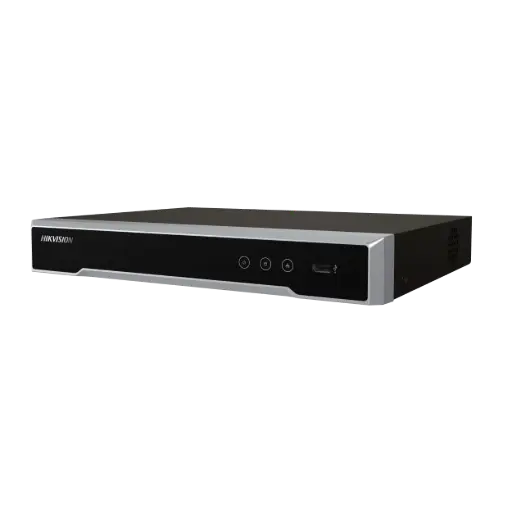
Hikvision DS-7604NI-M1/4P 4-Ch PoE 8K NVR (2TB)
4-channel PoE NVR with a built-in HDMI output and 2TB storage — plug it straight into a TV for a clean four-camera view at home or a small shopfront.
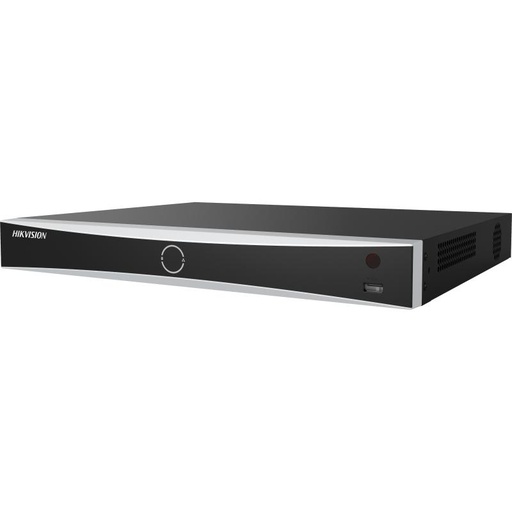
Hikvision DS-7608NXI-I2/8P/VPro 8-Ch AcuSense NVR
8-channel AcuSense PoE NVR with HDMI output and smart human/vehicle detection — great for driving a wall-mounted TV with up to eight cameras.
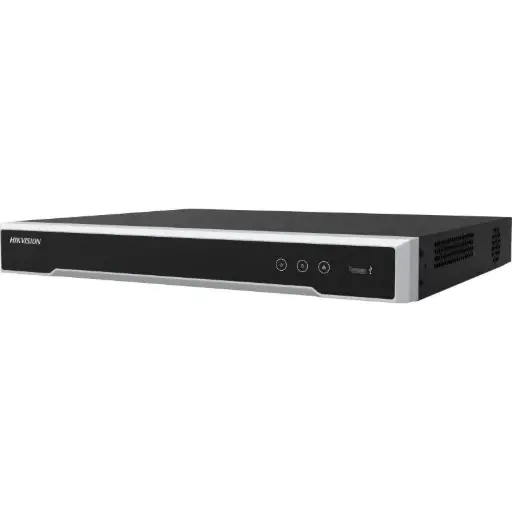
Hikvision DS-7616NI-M2/16P 16-Ch PoE 8K NVR
16-channel PoE 8K NVR with HDMI output — ideal for larger sites that need a full 16-way split on a big-screen TV or monitor.
Related Hikvision guides
- Hik-Connect Setup: Hikvision Remote Viewing Guide
- Best Hikvision NVR: Channels & Storage Guide
- What is a PoE NVR? Simple Security Installation
- How to Install Hikvision CCTV Yourself (Australia)
- How to Fix a Hikvision Camera Showing No Image or Black Screen
- How to Add a Camera to a Hikvision NVR (Step-by-Step)
Ready to buy?
Shop genuine Hikvision at ARC IP Networks
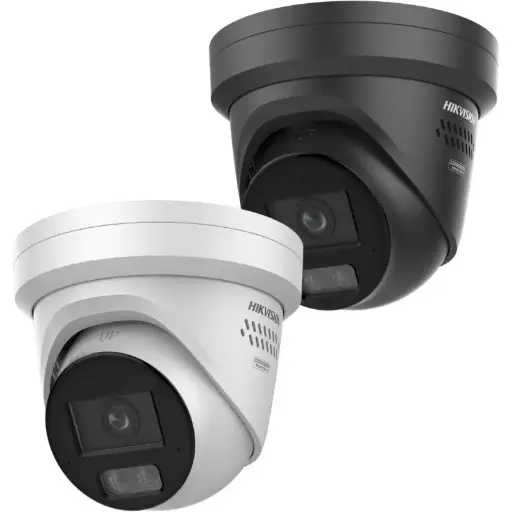
Authorised Hikvision reseller
Hikvision at ARC IP Networks
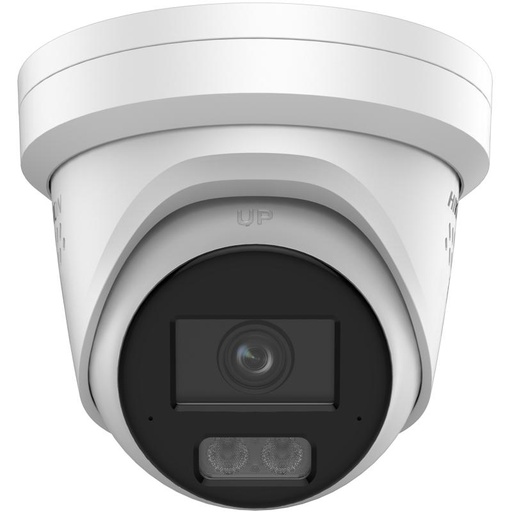
AcuSense, ColorVu and DeepinView cameras, NVRs and complete systems. Genuine Australian stock with the full manufacturer's warranty, competitive prices and price match available.
Frequently asked questions
Last updated: 2026-07-14 · Written by the ARC IP Networks team, an authorised Hikvision reseller in Australia.
Who we are
About ARC IP Networks
ARC IP Networks is an Australian supplier of security cameras and CCTV systems, based in Blackburn, Melbourne, Victoria. We work with homeowners, installers, integrators and businesses across Australia, supplying Hikvision, Ubiquiti UniFi Protect, Dahua and Jovision CCTV.
We are an authorised reseller for every brand we sell, and the national distributor of Jovision in Australia, so you get genuine Australian stock with the full manufacturer's warranty, never grey imports, at competitive prices. Our team can help you choose the right equipment, and trade customers get trade accounts and project pricing on larger jobs.
- Genuine Australian stock with the full manufacturer's warranty
- Competitive prices, price match available
- Trade accounts for installers, integrators and MSPs
- Australia-wide delivery; showroom in Blackburn, Mon–Fri 9–5 (demos by appointment)
Need help choosing?
Tell the ARC IP Networks team what you are trying to achieve and we will recommend the right equipment and quote it as one order.