Yes. Genuine Hikvision IP cameras and NVRs integrate with Home Assistant using open standards — ONVIF for discovery and events, and RTSP for live streams — so you can show cameras on dashboards and trigger automations from motion. ARC IP Networks supplies genuine Australian-stock Hikvision with local support.
Need new or replacement Hikvision gear? ARC IP Networks supplies genuine Hikvision cameras and NVRs at competitive prices, with the full Australian manufacturer's warranty, Australia-wide delivery and trade pricing.
Can You Use Hikvision Cameras with Home Assistant?
Yes. Hikvision IP cameras and network video recorders (NVRs) speak the same open standards that Home Assistant already supports, so they slot into a smart-home setup without any cloud lock-in. The two building blocks are ONVIF (an industry standard for discovering cameras and receiving events) and RTSP (the standard way to pull a live video stream). Home Assistant ships with an ONVIF integration and a Generic Camera integration that reads RTSP, and there is also a dedicated Hikvision integration for reading motion and alarm events.
In practice that means you can place a live Hikvision feed on a Lovelace dashboard, use motion or AcuSense events as automation triggers (lights on, notification to your phone), and even record clips locally. Because the link is on your own network, it keeps working whether or not you also use the Hik-Connect app for remote viewing.
How Does Hikvision + Home Assistant Integration Work?
There are three common ways to connect a Hikvision device to Home Assistant. Most setups use a combination — RTSP for the picture and ONVIF (or the Hikvision integration) for the events that drive automations.
| Method | What it gives you | Good for |
|---|---|---|
| ONVIF integration | Auto-discovers the camera, provides a live camera entity, and can expose motion as a binary sensor | Live view plus event triggers in one integration |
| RTSP (Generic Camera) | Pulls the live video stream directly using the camera's RTSP address | Reliable dashboard streams from a camera or NVR |
| Hikvision integration | Reads the device event stream and creates sensors for motion and other alerts | Rich, event-driven automations |
An NVR can act as a single hub too: point Home Assistant at the recorder and pull individual channels, so the NVR keeps doing the heavy recording while Home Assistant handles live view and automations. For the full recorder picture, see our Hikvision NVR channels and storage guide.
Step 1: Enable ONVIF & RTSP on the Camera
Before Home Assistant can see the device, make sure the streaming standards are switched on. On the camera or NVR web interface, check the network and integration-protocol settings and confirm ONVIF is enabled and that RTSP streaming is available. It is good practice to create a separate user account just for Home Assistant so you are not sharing your main admin login.
Note the device's IP address (our SADP tool guide shows how to find it), and keep firmware up to date. Exactly which options appear depends on the model and firmware version, so if a setting is missing, update the firmware first.
Step 2: Add the Integration in Home Assistant
In Home Assistant, add the integration that matches your goal. The ONVIF integration will typically discover the camera on your network — enter the device IP, the ONVIF/RTSP port and the user account you created. For event-driven setups you can instead (or additionally) add the Hikvision integration, which connects to the device's event stream. Use the local IP address, not a cloud account, so the connection stays on your own network.
Step 3: Add the Camera Entity & Live View
Once the integration connects, Home Assistant creates a camera entity you can drop onto a dashboard with a Picture or Picture Glance card. For the smoothest dashboards, point live tiles at the camera's sub-stream (lower resolution) and reserve the full-resolution main stream for recording or full-screen viewing — this keeps your interface responsive. If you prefer a dedicated viewing app on a computer instead, our iVMS-4200 guide covers that route.
Step 4: Build Automations from Motion & AcuSense Events
This is where the smart home comes alive. With ONVIF or the Hikvision integration providing a motion (or AcuSense human/vehicle) binary sensor, you can build automations such as: turn on outdoor lights when motion is detected after dark, send a push notification with a snapshot, or start recording a clip. AcuSense cameras help cut false alarms by only flagging people and vehicles — see how it works in our Hikvision motion detection setup guide. Which specific events appear in Home Assistant depends on the model and firmware, so test each trigger before relying on it.
What Works, What to Check, and Which Camera to Choose
Home Assistant integration is powerful but feature- and firmware-dependent. Keep these points in mind:
- Not every feature is exposed. Live view and basic motion are well supported; advanced smart events vary by model and firmware.
- Use a wired PoE camera or NVR where you can. A stable network link makes streams and events far more reliable than Wi-Fi.
- Keep firmware current for the best standards support — but always follow safe update practice.
- Let the NVR record. Home Assistant is great for live view and automations; a dedicated recorder is still the most reliable place to store continuous footage.
For a Home Assistant build, a standards-based AcuSense or ColorVu IP camera plus a PoE NVR is the sweet spot. The featured products below are all genuine Hikvision network devices well suited to the job.
Hikvision Cameras & NVRs That Work Well with Home Assistant
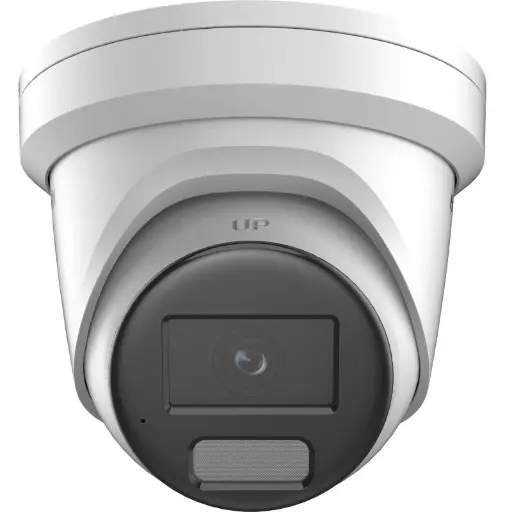
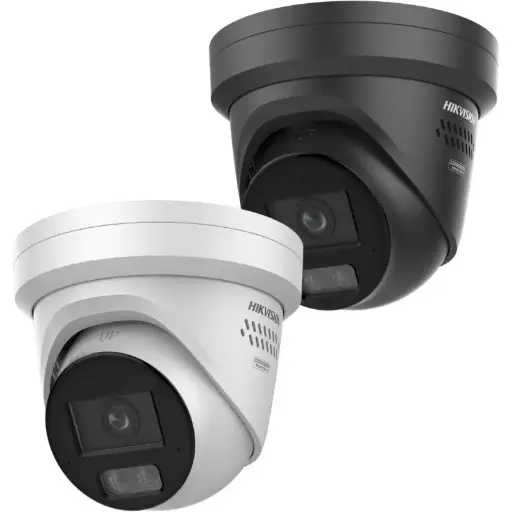
Hikvision DS-2CD2386G2H 8MP 2.8mm Powered by Darkfighter Fixed Turret Network Camera
8MP AcuSense turret with a microphone and DarkFighter low-light performance — a versatile ONVIF/RTSP IP camera for dashboards and motion automations.
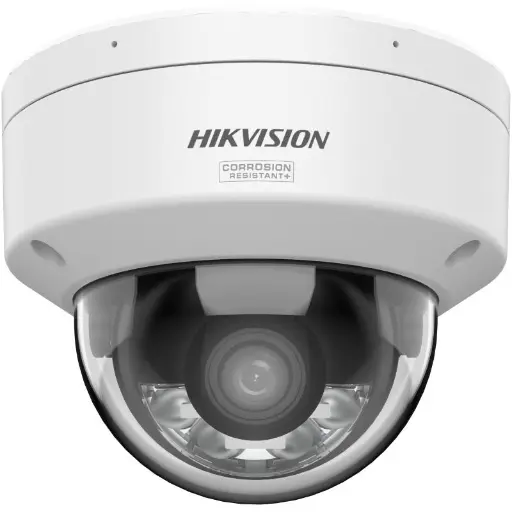
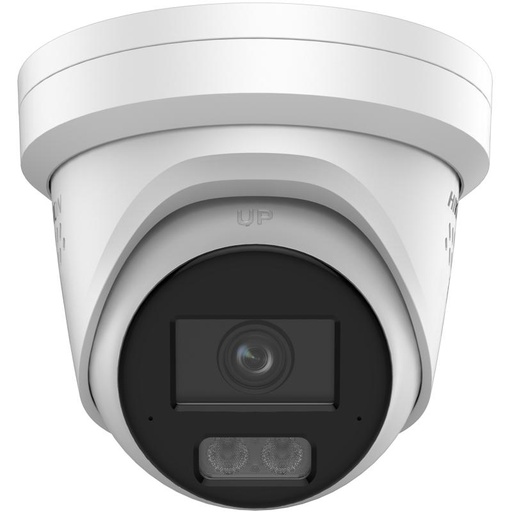
Hikvision DS-2CD2167G3 6MP 2.8mm ColorVu AcuSense Turret
6MP ColorVu AcuSense turret delivering full-colour night video and person/vehicle event filtering to reduce false triggers.
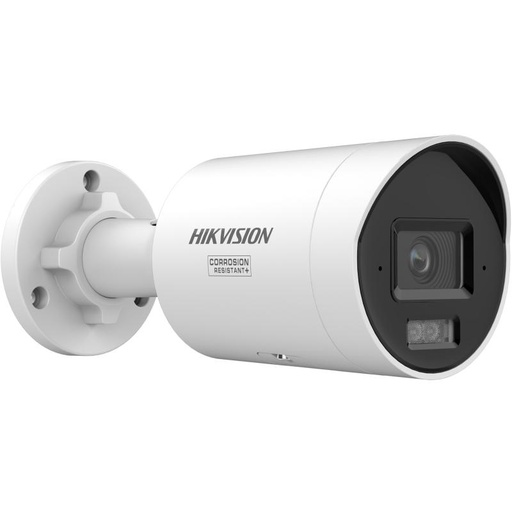
Hikvision DS-2CD2067G3 6MP 2.8mm ColorVu Bullet Camera
6MP ColorVu bullet camera for bright, full-colour coverage of driveways and entries, streamed over RTSP.
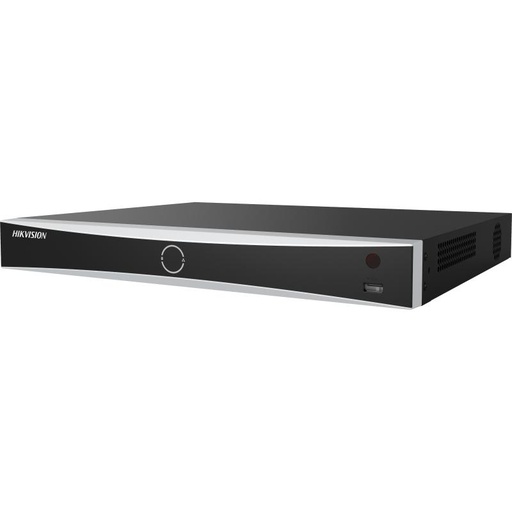
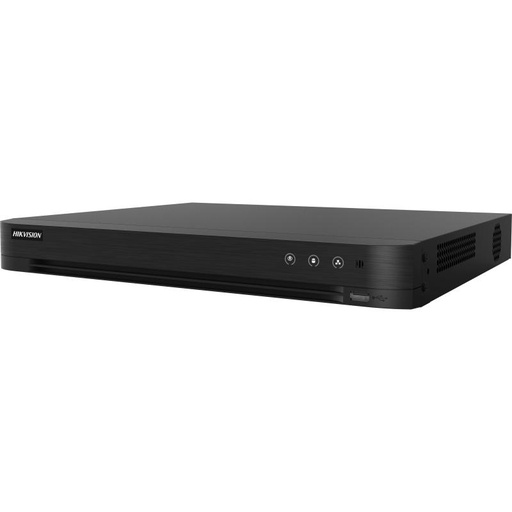
Hikvision DS-7608NXI-I2/8P/VPro 8-Ch AcuSense NVR
8-channel AcuSense PoE NVR — a single hub that records continuously while Home Assistant handles live view and automations.
Related Hikvision guides
Ready to buy?
Shop genuine Hikvision at ARC IP Networks
Authorised Hikvision reseller
Hikvision at ARC IP Networks
AcuSense, ColorVu and DeepinView cameras, NVRs and complete systems. Genuine Australian stock with the full manufacturer's warranty, competitive prices and price match available.
Frequently asked questions
Last updated: 2026-07-14 · Written by the ARC IP Networks team, an authorised Hikvision reseller in Australia.
Who we are
About ARC IP Networks
ARC IP Networks is an Australian supplier of security cameras and CCTV systems, based in Blackburn, Melbourne, Victoria. We work with homeowners, installers, integrators and businesses across Australia, supplying Hikvision, Ubiquiti UniFi Protect, Dahua and Jovision CCTV.
We are an authorised reseller for every brand we sell, and the national distributor of Jovision in Australia, so you get genuine Australian stock with the full manufacturer's warranty, never grey imports, at competitive prices. Our team can help you choose the right equipment, and trade customers get trade accounts and project pricing on larger jobs.
- Genuine Australian stock with the full manufacturer's warranty
- Competitive prices, price match available
- Trade accounts for installers, integrators and MSPs
- Australia-wide delivery; showroom in Blackburn, Mon–Fri 9–5 (demos by appointment)
Need help choosing?
Tell the ARC IP Networks team what you are trying to achieve and we will recommend the right equipment and quote it as one order.